Getting started on the Knowledge Base Portal
What is a knowledge base?
A knowledge base is a repository of helpful information that users can navigate to find answers to commonly asked questions relating to a product or concept, by themselves.
The knowledge base will support multiple formats of learning, including solution articles or FAQs, product manuals, tutorials, videos, and troubleshooting guides, all categorized into distinct themes or folders.
What is the B Impact Assessment knowledge base for?
Most customers prefer to start their support journeys with self-service. Customers today value easy access to useful resources more than ever since they want to find quick answers without having to reach out for help.
Our BIA self-service portal grants customers instant access to information and empowers them to solve issues independently. It points customers to the right solutions and ensures that they do not have to face long wait times.
How do I log into the Knowledge Base?
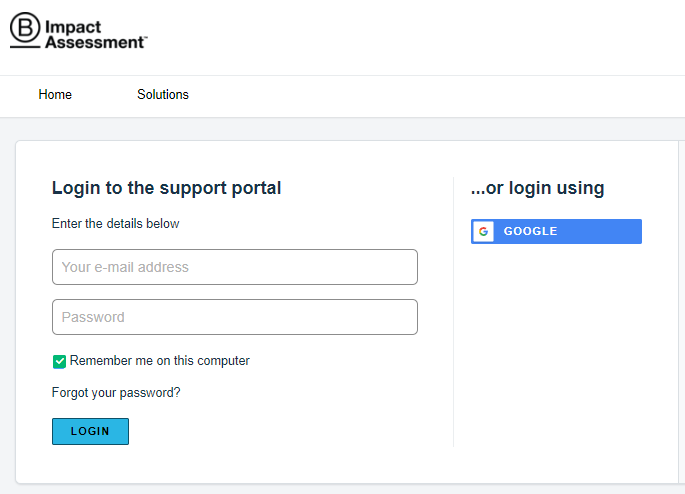
Once you have already created an account on this portal, you can use your credentials to log in.
Step 1: Visit the following link https://kb.bimpactassessment.net/support/login
Step 2: You will land on a page to enter your registered email address and your password or you can log in using your google credentials (Google Chrome).
Step 3: If you forgot your password, click on the corresponding link and you will receive a reactivation link in your personal email inbox.
NB: It is not mandatory to sign up in order to consult the B Impact Assessment Knowledge Base or to submit a ticket.
Welcome to our B Impact Assessment Knowledge Base!
This is your self-service portal to learn more about our product & resources and it is a place where you can submit and monitor any inquiry (ticket) to us.
How do I submit a ticket?
- B IMPACT & KNOWLEDGE HUB Ticket form
Whenever you have a question, a suggestion, a request or you encounter an issue with one of our products (such as the B Impact Assessment), users like you can directly log a ticket via our Customer Support Portal:
https://kb.bimpactassessment.net/support/tickets/new
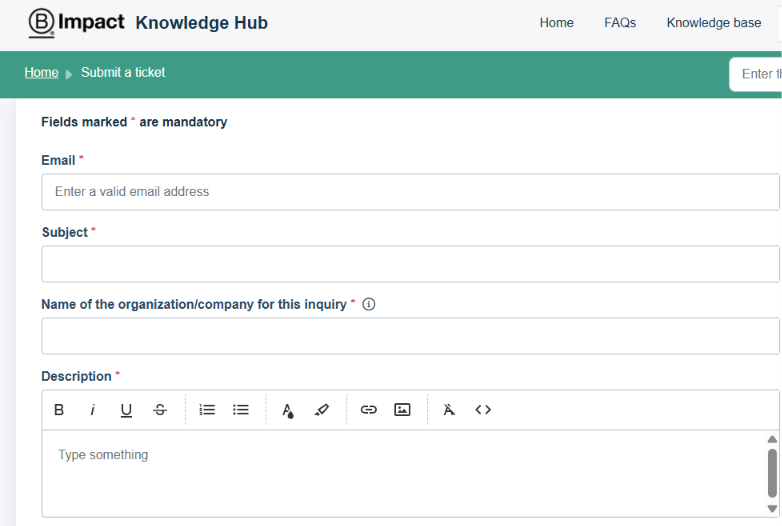
Please note that you can also use the widget tool [Get Help] located at the bottom right corner of our B Lab Website and the top right corner of the B Impact portal.
Once you select the option "Contact Us", you will be prompted with the form to submit your next ticket.
- PUBLIC COMPLAINT Ticket form
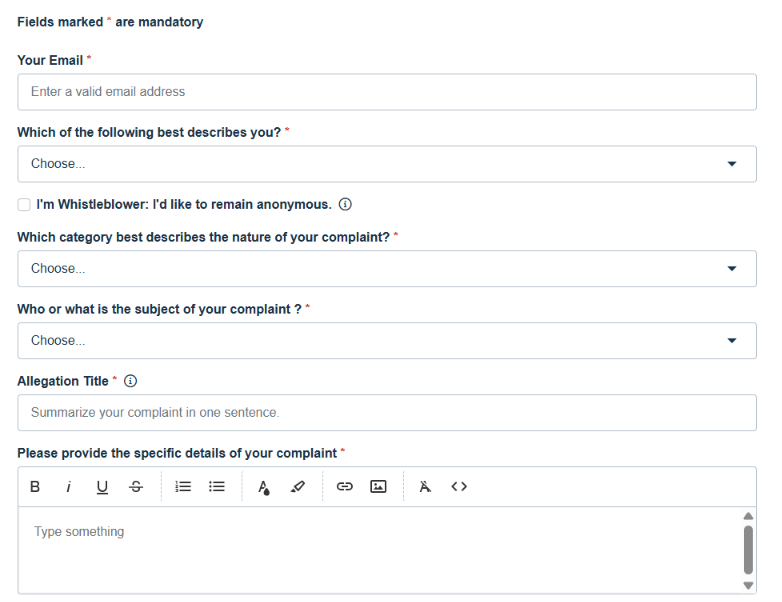
Meanwhile, if you have credible knowledge of misconduct or misrepresentation by B Lab™ or a Certified B Corporation™, you can file a complaint via this other form:
https://blab-public-complaints.freshdesk.com/en/support/tickets/new
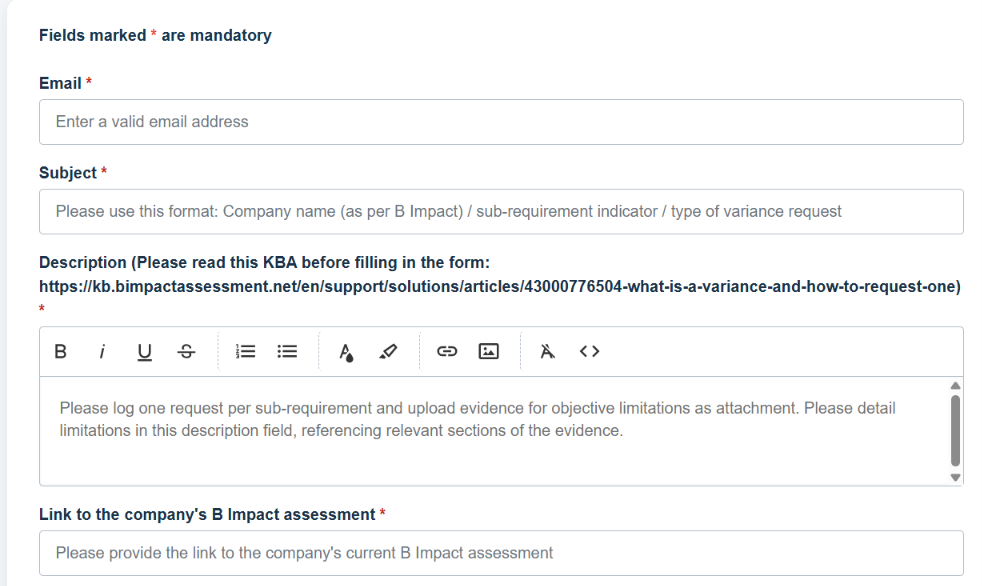
- VARIANCE REQUEST Ticket form
In addition, any applicant company may submit a variance request to B Lab while completing their self-assessment to seek authorization for a time-bound exception to a B Lab Standard requirement via this other form:
https://blab-vr-help.freshdesk.com/support/tickets/new
How do I manage and track the status of your existing ticket(s)?
When you log in the Knowledge Base with your credentials, you will have access to all the tickets that you have ever submitted to us.
https://kb.bimpactassessment.net/support/tickets
IMPORTANT:
Please take the time to update your ticket details if you have not already done so upon initial submission:
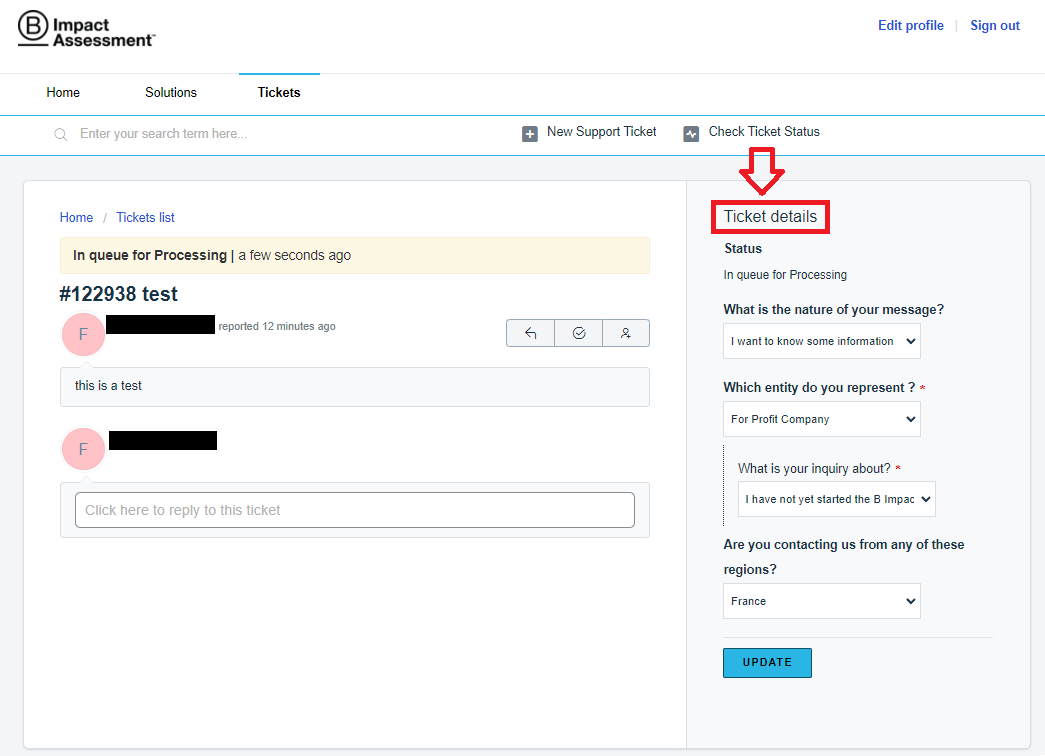
This additional information may help us to select the best team to respond to your query.
Please note that on the right panel your ticket will be going through different possible statuses:
In queue for Processing:
We will work on your ticket as soon as possible.
This ticket is being Processed:
We are actively working on your ticket.
Awaiting your Reply:
We need you to provide more information about your ticket.
This ticket has been Resolved:
We have provided you with a final response to your ticket.
This ticket has been Closed:
We are no longer handling this ticket.
This ticket has been Reopened:
You have requested to reopen your ticket
You can always reply again to your own ticket at any time of the process, even when our team considers it as resolved or closed. Our system will then automatically reopen it regardless, and our team will continue to work on it.
However, we kindly ask for our clarity and for a better process that you will submit different and distinct issues under different tickets instead of extending from the same initial inquiry.
Any ticket resolved will be automatically closed after 48 hours as we consider you chose not to reopen it.
Any ticket awaiting for your reply for more than 7 days will be automatically closed after our system will have sent a brief reminder to your inbox.
We are kindly asking you and all requesters to allow enough time for a resolution or a feedback from the respectively assigned team as they all process these tickets in chronological order to the best of their capacity.
Turnarounds time may vary depending on the complexity of the tickets and the current backlog.
Finally, when we provide you with a resolution and your ticket is set to the status "resolved", a survey will be displayed on the left panel of this ticket.
How can I leave feedback related to articles from the knowledge base?
Every time you open an article, you will find at the bottom end an option to leave your feedback.

There is no further action needed from you anytime you select the "thumb's up (Yes)".
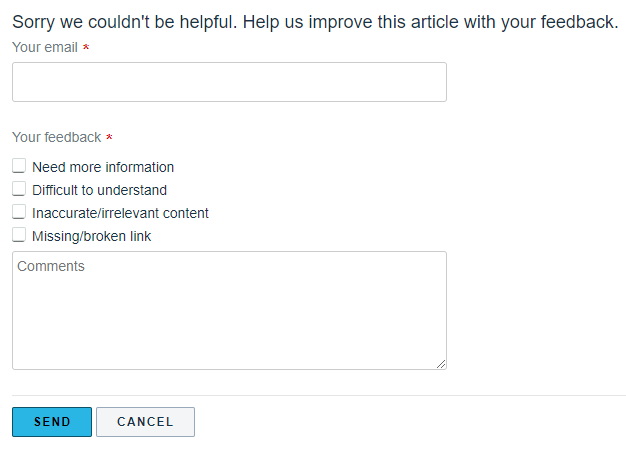
However if you select the "thumb's down (No)", you will be prompted with a follow up form to fill out. This form helps us to improve our Knowledge Base.