B Impact account settings
Navigating the new B Impact experience
How is B Lab’s platform changing?
B Lab has released a new interface in early 2025. You can review the new features by logging in or by sample these features in this article.
If you are logging into your account that was created before 2025, you will be required to opt into the Certification setup experience. Please see How do I opt into B Corp certification for more information.
If you are making your account in 2025, you will be able to see the Certification setup, which is a new, more efficient way to confirm preliminary eligibility for B Corp certification based on a series of questionnaires about your company. This section is optional but highly encouraged.
Will I still be able to login with my credentials?
Yes, you are able to use existing credentials to log in. If you have forgotten your password, see Change or Reset Password.
Where can I find my account details and settings?
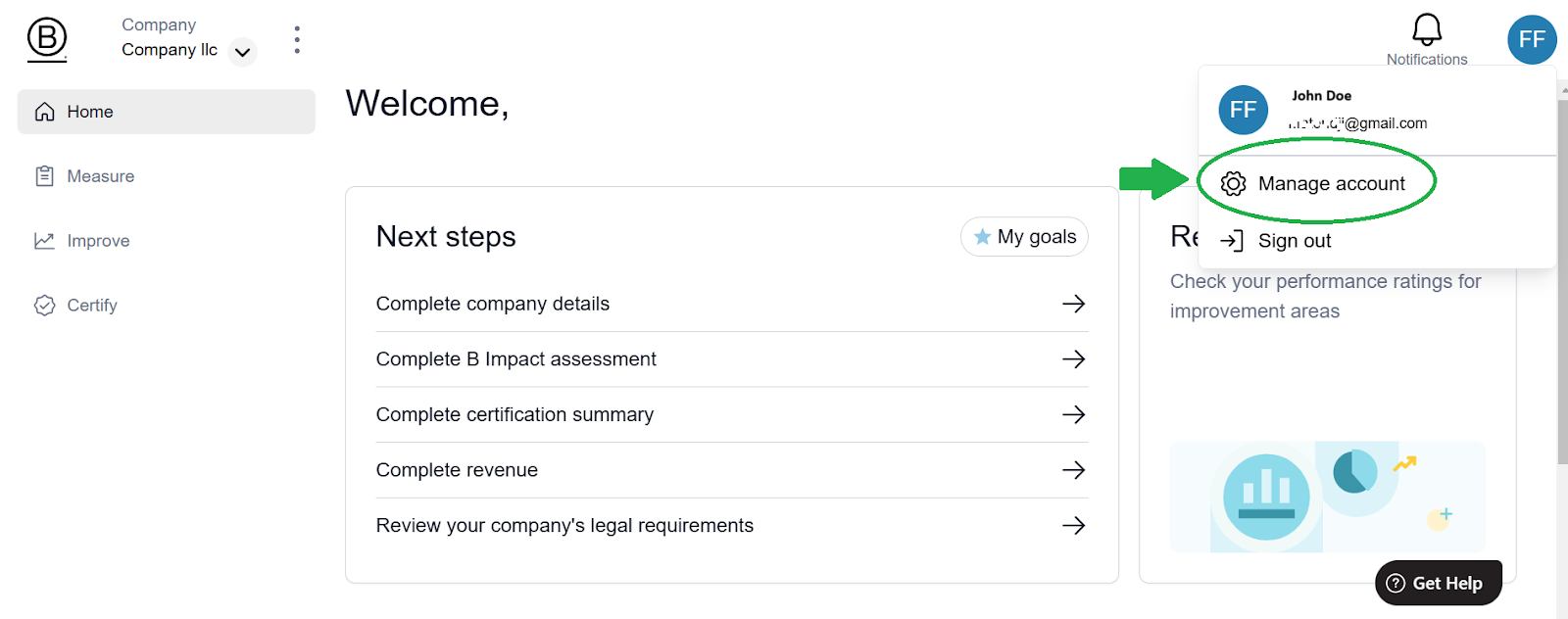
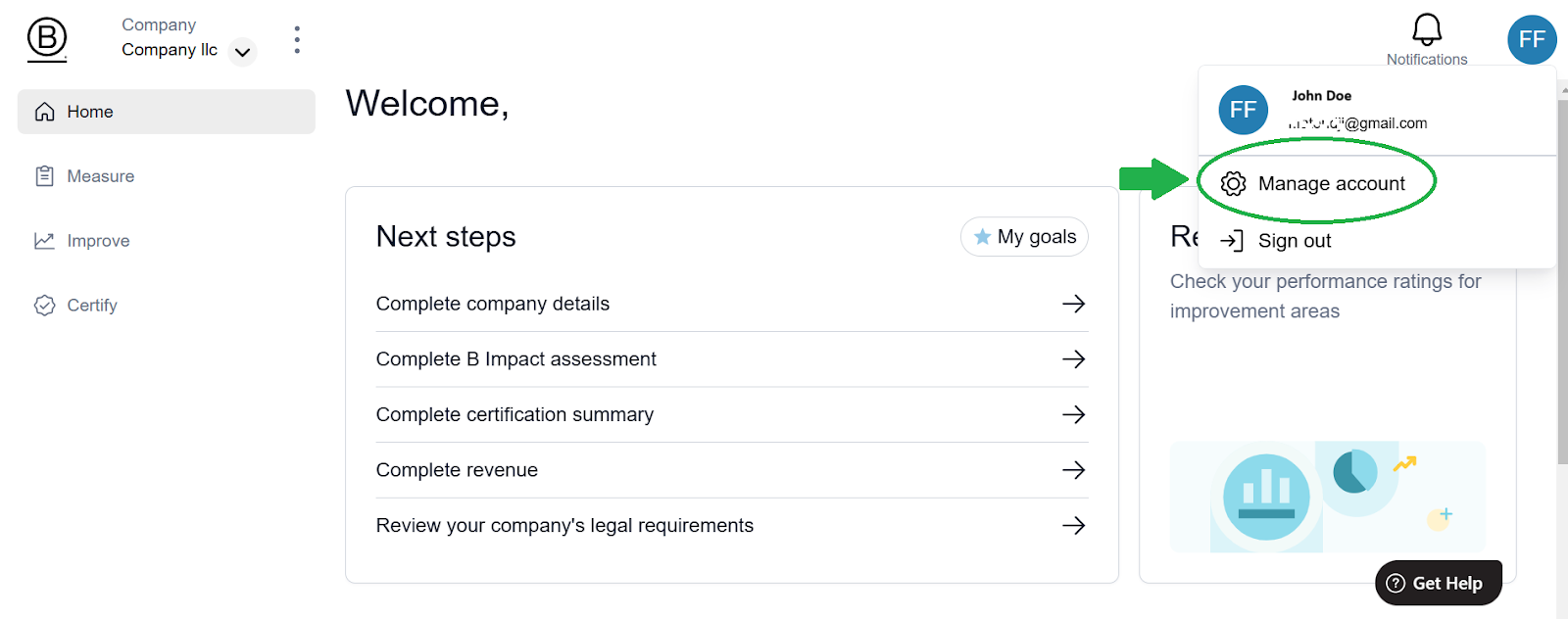
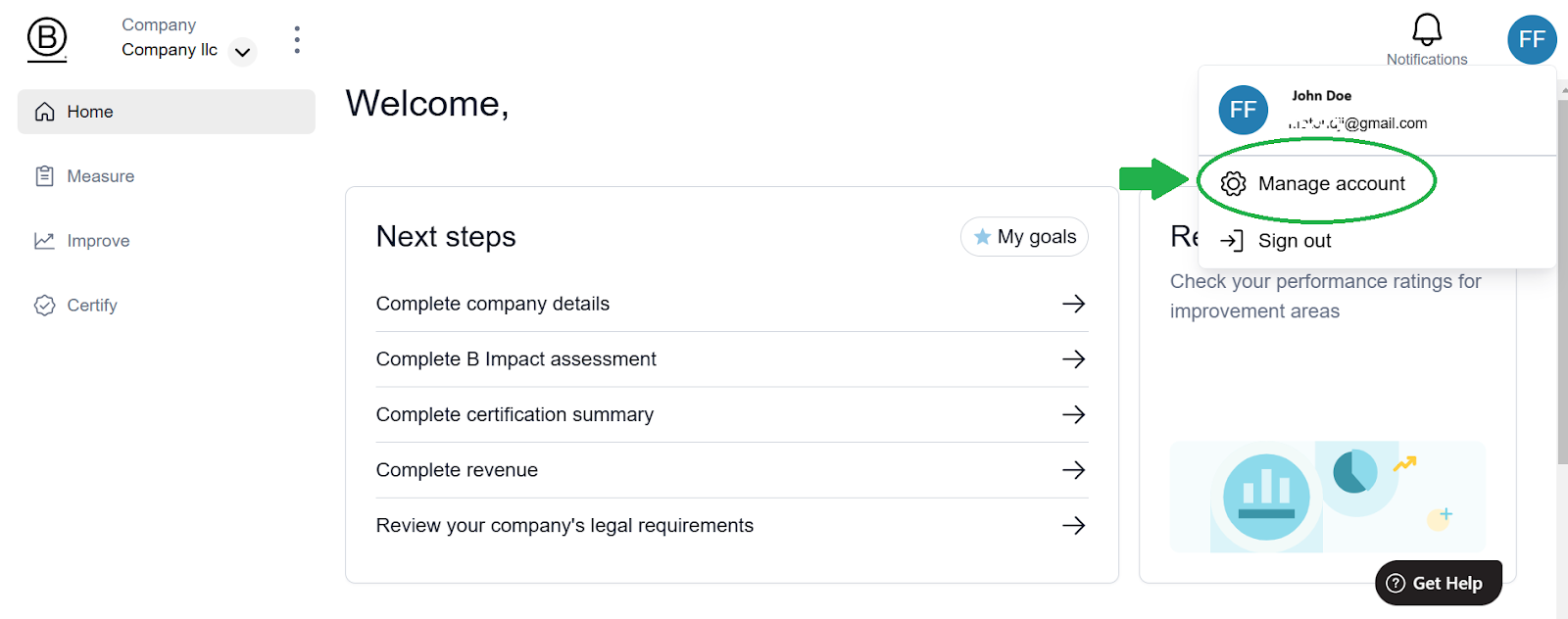
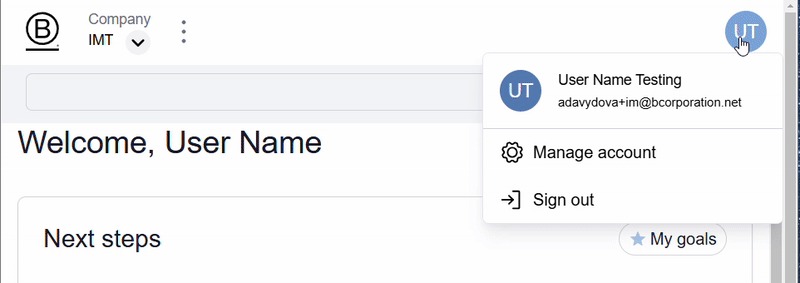
Once you are logged into the website, see your account information by clicking the top right icon and selecting “Manage account.” This will include information about your role, basic company information, team members and security information.
What is the new navigation of the platform?
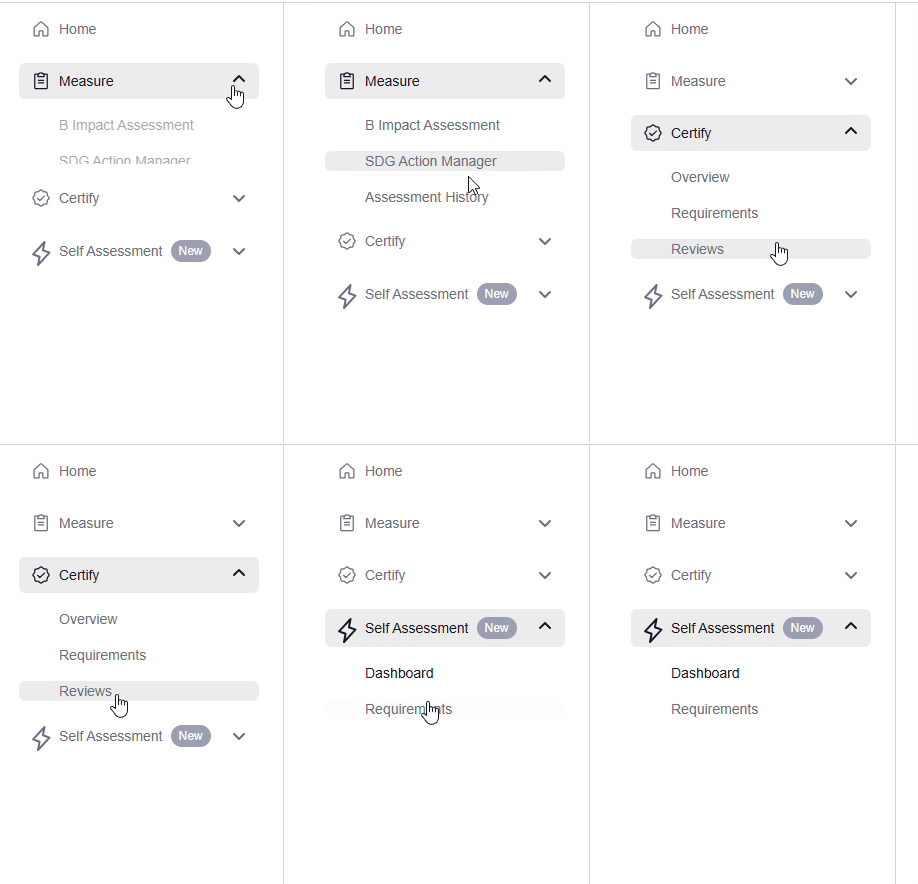
Once you complete the Certification setup, you will be able to start the assessment. The navigation will include the following menu on the left side.
Home
Measure
Certify
Self Assessment
What does the Home page include?
The Home page includes all of the user’s Next steps as defined by the requirements of the company’s assessment. This can include a list of areas that need attention, or it can be empty, which means that there are no requirements to complete at the time of viewing. If your company is interested in certifying or recertifying as a B Corp, please refer to the Next steps for your required actions. Additionally, the company will be able to review the Goals from the home page.
What does the Measure page include?
The Measure page provides access to the B Impact Assessment, the SDG Action Manager and the Assessment History. Assessment History includes information about all of your previous verified and unverified assessments.
What does the Improve tab include?
The Improve page includes the features of the platform that involve the company’s performance on a partially completed or fully completed assessment. The Benchmark tool which shares how the company fares against other companies by size, sector and market. This view will be open to all companies but only those with an assessment will have data in it.
Areas to Improve will provide some suggested Impact areas where the company’s score can improve as well.
What does the Certify tab include?
The final tab will be the Certify page which will include all of the steps required to certify or recertify as a B Corporation:
Setup: We'll walk you through the process of creating a customized assessment for your company's size, industry, and location and check your company's preliminary eligibility to certify. If you already have an assessment, we will verify that you have access to the most relevant questions.
Requirements: This is a list of required steps to complete before submitting your B Impact Assessment for review that will require your acknowledgement.
Reviews: Once you have submitted your assessment, you can keep track of your company's verification process through the Reviews tab. You may receive required actions from your assigned B Lab analyst.
What does the Self- assessment tab include?
The self assessment is the measuring tool for the new standards that are available by opt-in. Since the verification process for the new standards is under development (see guides in Understanding the new standards), any user can opt into this view. There are two main views of the self-assessment:
Dashboard: this page offers a view of all of the sub-requirements and the company’s progress in completing them.
Requirements: this page offers an overview of each of the 7 new impact areas and a way to focus on viewing the sub requirements for each of them
How do I sign into my existing B Impact account?
Step 1:
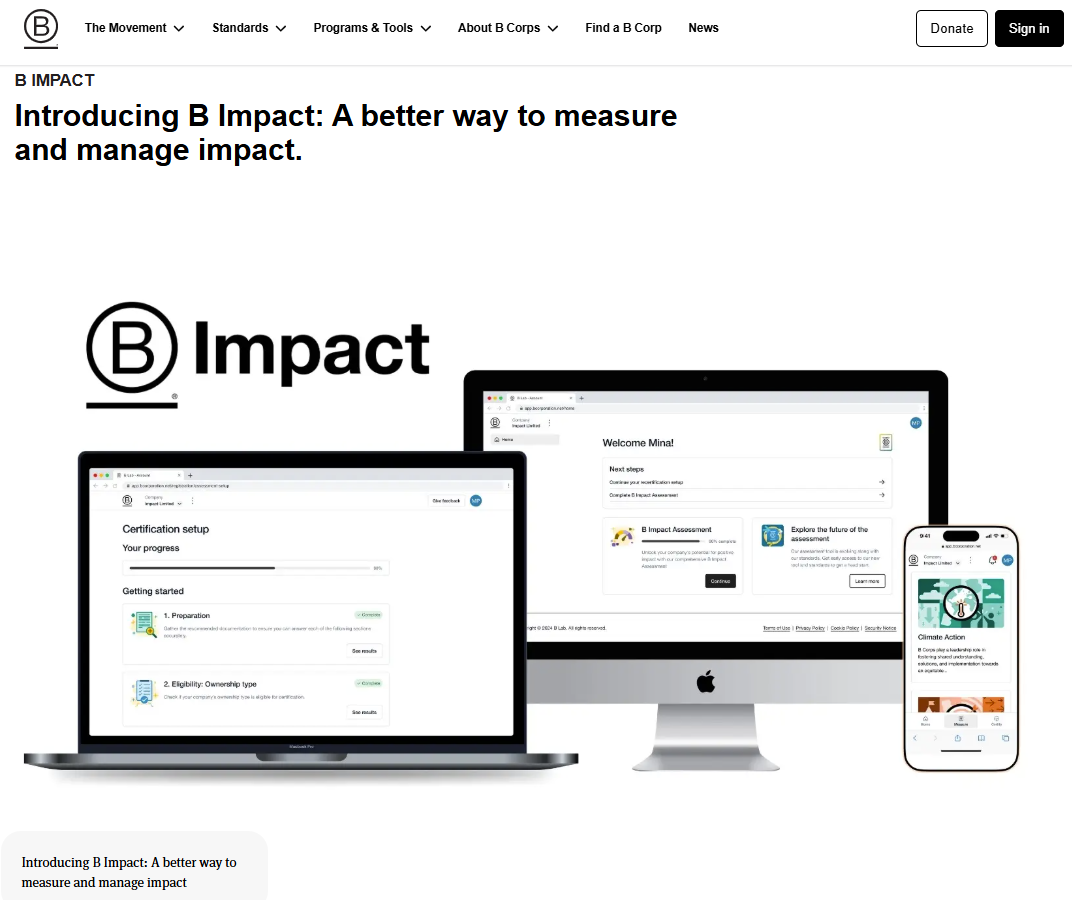
Visit the B Impact Assessment webpage from the B Corp website.
Step 2:
Select the option “B Impact Assessment” or "Self-Assessment" to go to the BIA registration page.
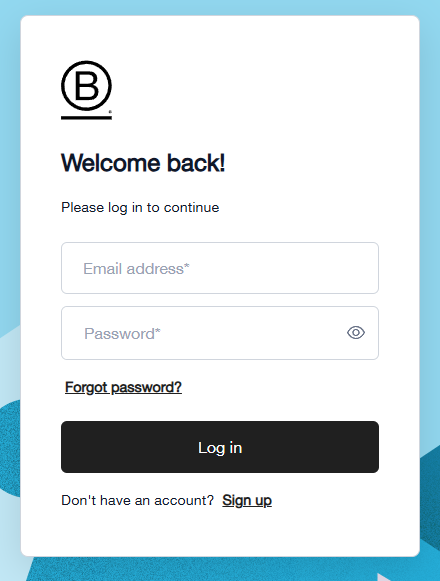
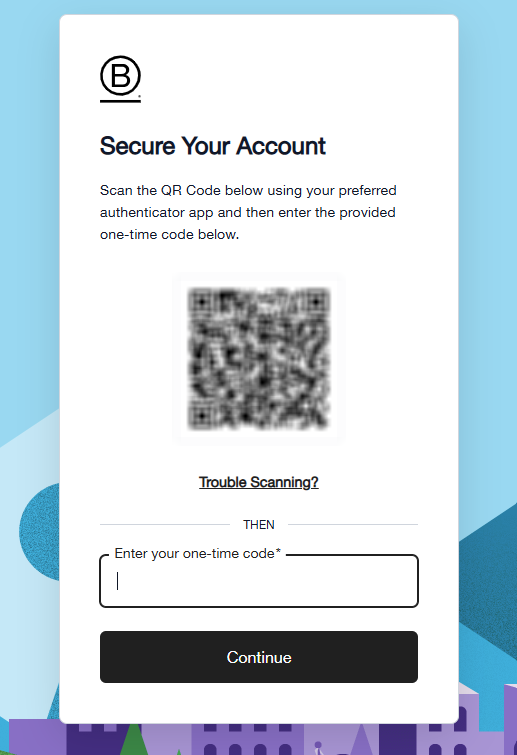
a.) Once you enter your email address and password, the portal will present an option to set up your two-factor authentication to secure your account:
b.) Otherwise, if you have already configured it before, you will be asked to directly enter the code to verify your identity:
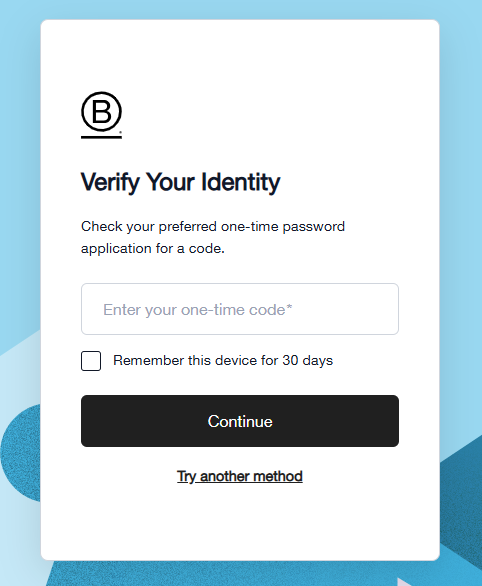
Please note that this required one-time 6-digit code will be generated in the authenticator app that you are using to log in to the B Impact portal. This code is only valid for 30 seconds before it resets to a new value.
c.) Please note: If you click the 'Remember this device for 30 days' option, you will not be prompted to verify your identity with a one-time password code for 30 days.
We recommend selecting this option if you are logging in from a personal device, but not from shared devices.
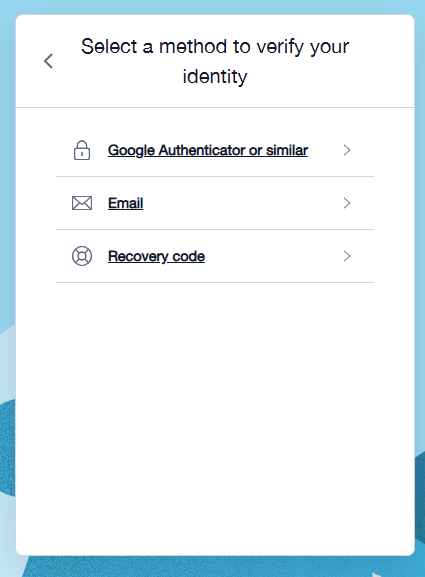
d.) You may also select any of the other options available under [Try another method] :
- with an authenticator app (such as Google Authenticator, Microsoft Authenticator, etc.)
- with a code sent to your verified email address
- with the unique recovery code that you have previously saved during your first account registration.
Step 3:
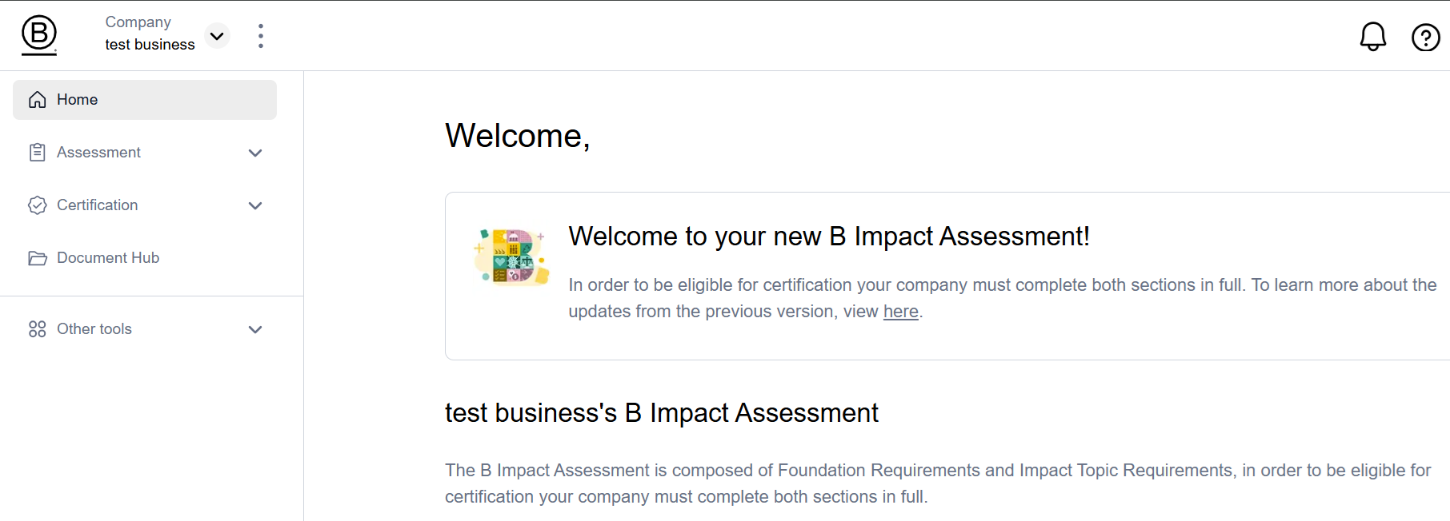
Finally, you will access the welcome page of the B Impact platform.
NB: If you are still unable to log in despite this guidance, please submit a support request here.
How do I change my company's name and details?
When you log on your online portal, you have the option to manage and update your company's information. Click on the top right menu avatar icon and select “Manage account” as demonstrated below.
In the Company tab on the left hand menu, you will find General Information that can be edited such as:
Legal company name
Preferred company name
Official website
Country of incorporation/formation
Legal structure
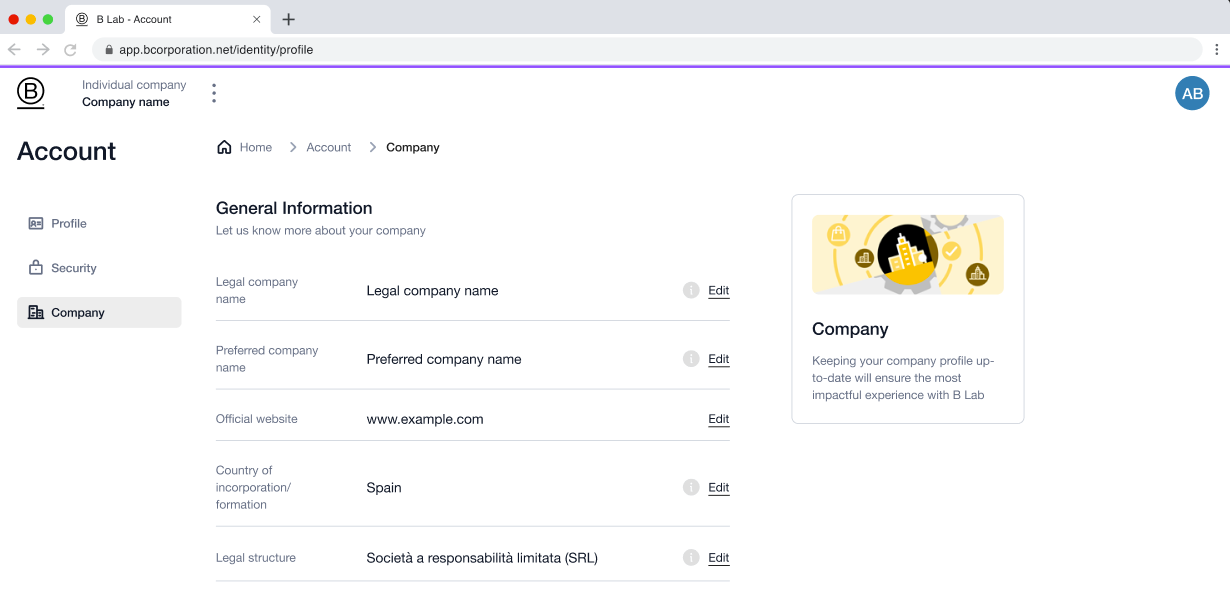
Once you have completed your changes, click on the “save” button in the section you are editing.
If you encounter any issue updating your company details, please contact our support team via the help widget at the bottom right of your screen, or submit a ticket in the Support Portal.
How do I add or remove team members?
You can manage who has access to your B Impact account on the Team Members section.
Once you have created an assessment in your account, you will be able to add Team members. Team members are contributors to the assessment responses and have access to the company’s information.
The Team members tab will be available on the “Manage account” settings only if you already have an assessment.
Disclaimer: If you are working on the initial Certification Setup pages, this feature will not be available to you on your account page. The account creator will have to complete the setup experience before they can invite additional team members.
To add members to your team, follow these steps:
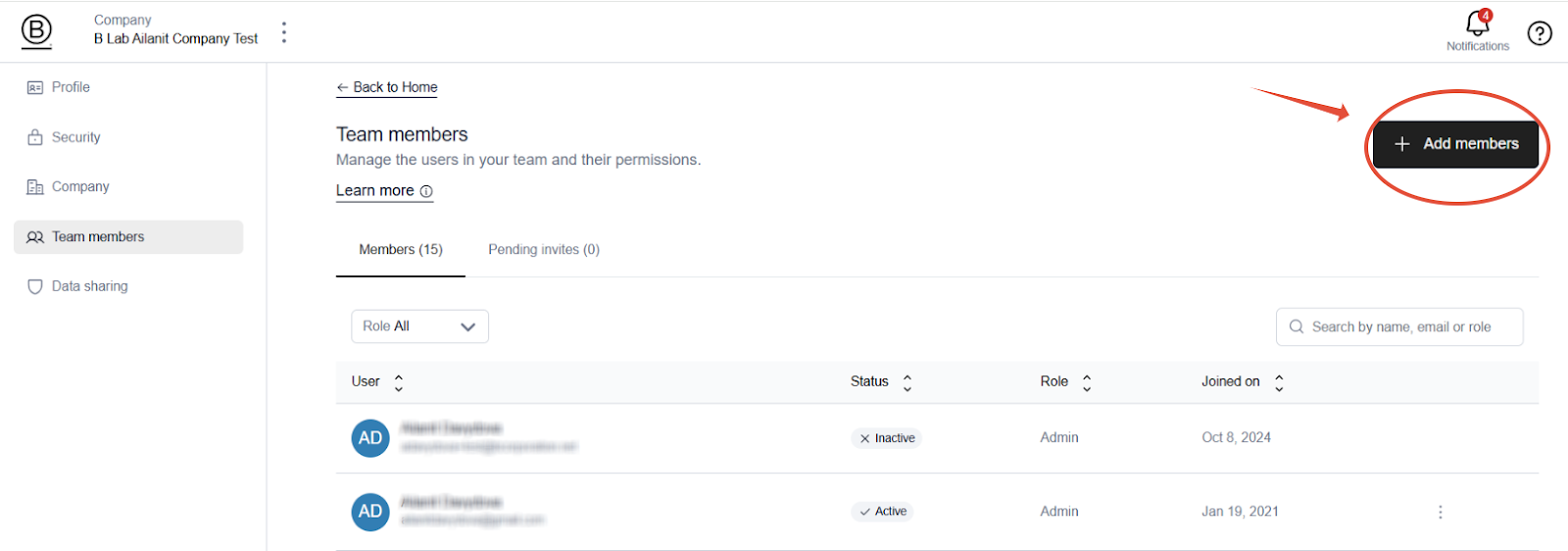
From the home page, select the top right menu avatar icon and click under the option “Manage account”.
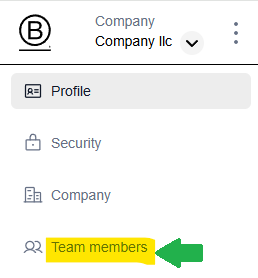
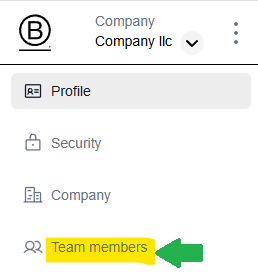
Then, on the top left menu, you will click on the option “Team members”.
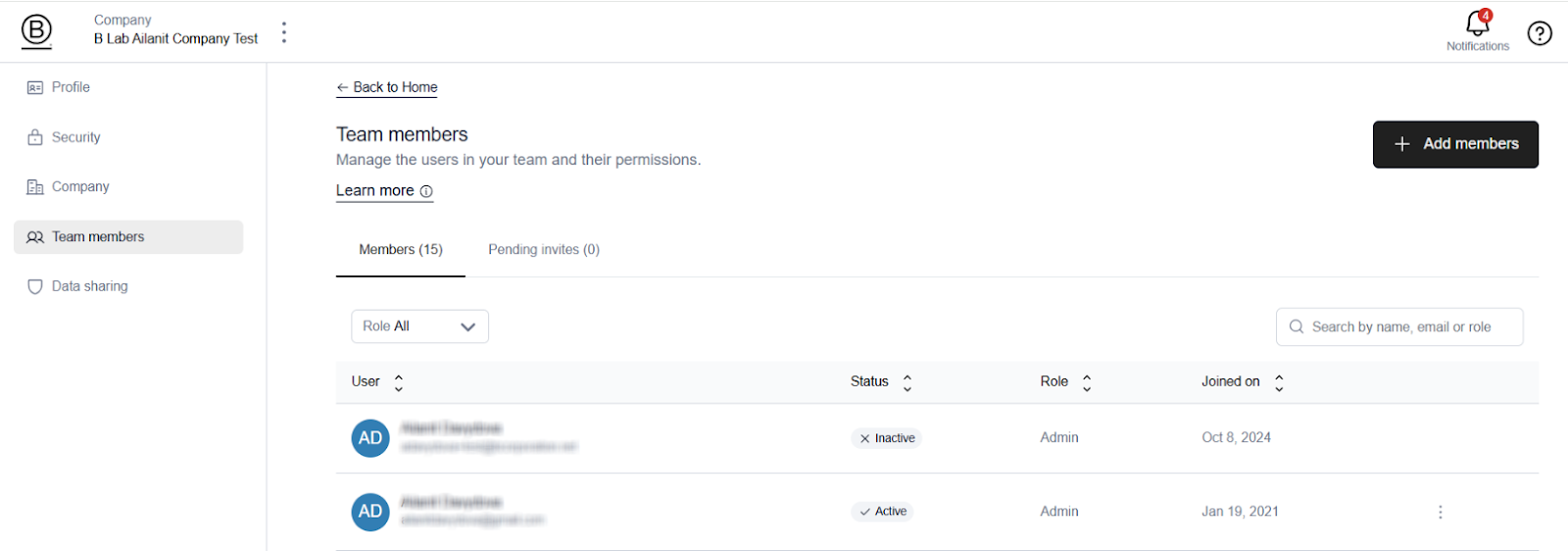
You will see the list of colleagues who can view the assessment, including your own user information.
Click the Black button at the top right of the screen to "+ Add members."
Provide the team member’s email and select their role (between Admin and Member).
Optionally, you can add a note such as “Hi John, can you help me by answering the remaining questions in the Workers section? Thanks!”.
You can also add multiple team members simultaneously.Click Send Invite.
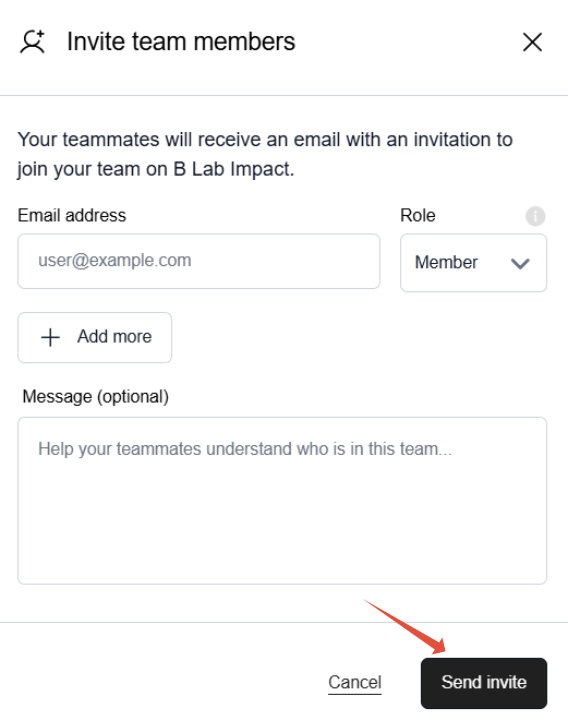
The invite will then be sent to the new team member.
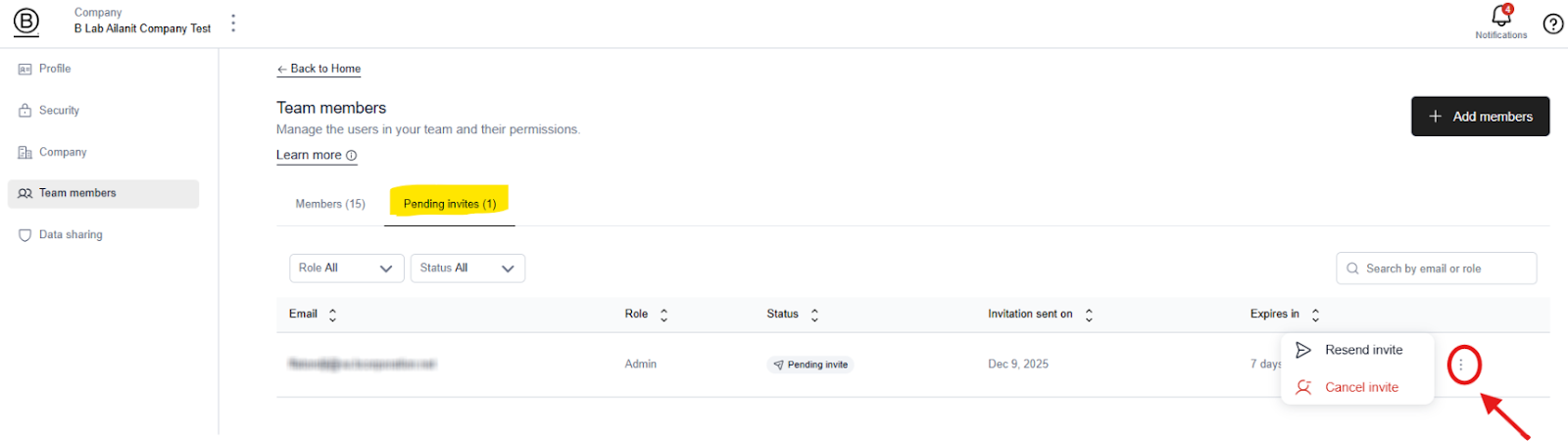
Once a team member is invited, they will appear among your tab of pending invites.
You can click the overflow button (three vertical dots) to resend or remove your invitation.
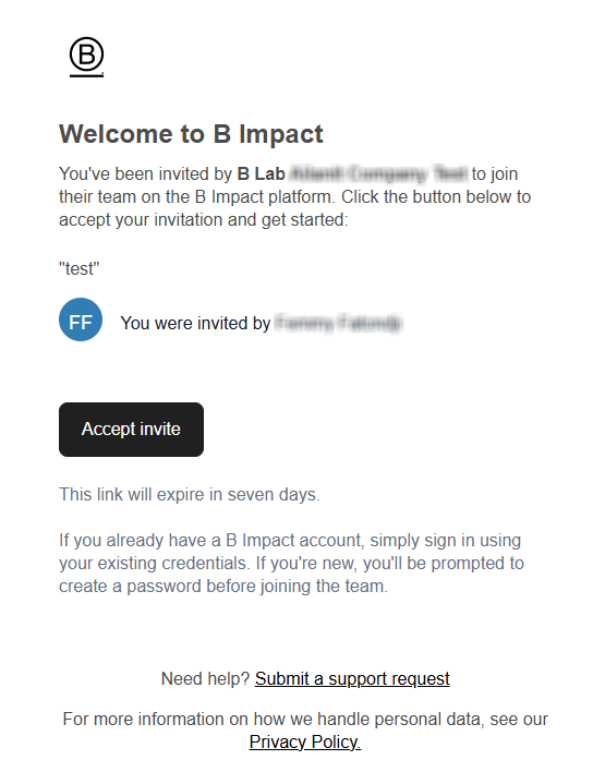
The user will receive an automated notification:
Once a user has accepted your invitation from their inbox, you will see the the displayed next to their email address.
REMOVE A TEAM MEMBER
To remove a team member:
From your Company dashboard, click Team Members.
Click the overflow button (three vertical dots) associated with a team member you would like to remove.
Click "Remove team member"
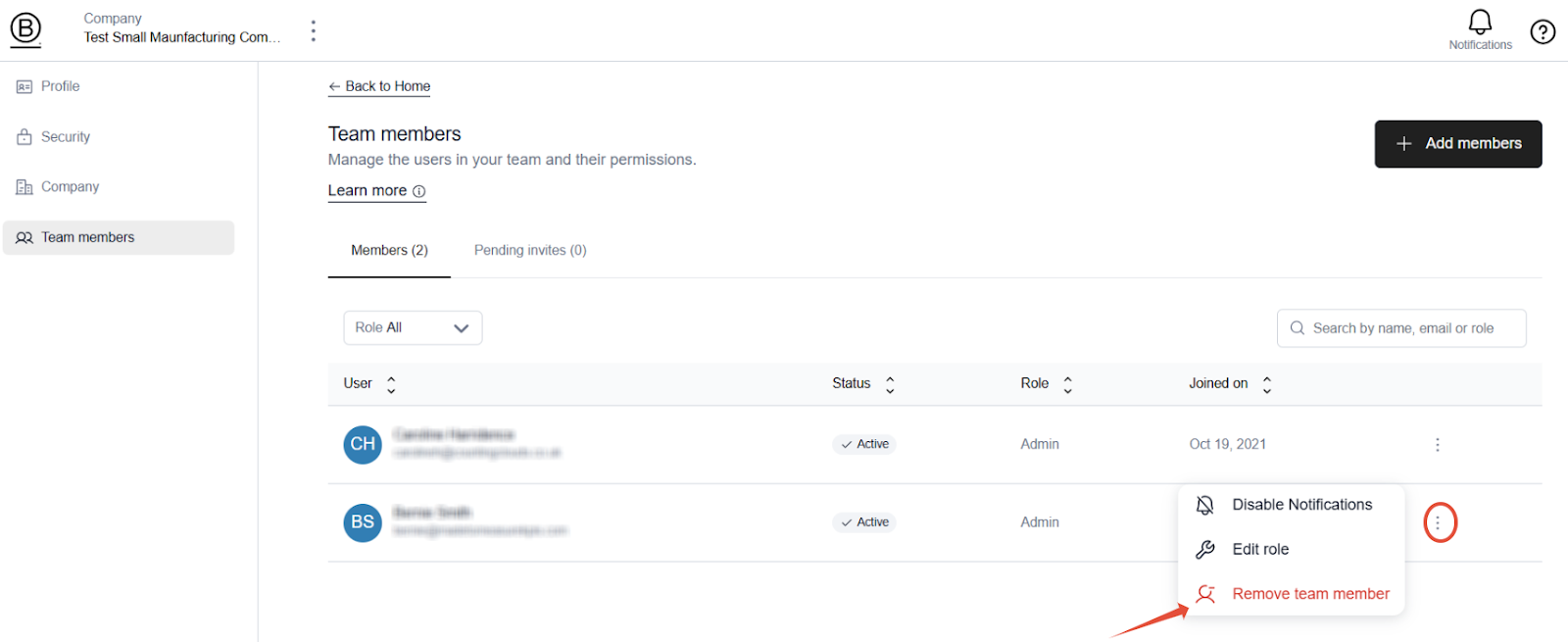
The user will be marked as "inactive" your list and will no longer have access to your account.
Please note that a user cannot add or remove themselves as a new team member for security purposes.
For audit purposes, we do not offer an option to permanently delete inactive users.
_______________________
USER ROLES
Currently, there are two roles available:
Admin: can manage most features like update company/user settings and add other admins.
Member: can add other members. They can edit and collaborate on all work.
In the upcoming months, B Lab will expand on the abilities for each of these roles, but at this time, both roles effectively have the same level of ownership and permission access to your company account.
_______________________
MULTIPLE ACCOUNTS
A single user cannot add themselves to multiple accounts, but can be invited by existing contacts in an Account to be a Team Member. Please make this request directly with the account contacts, rather than with B Lab.
If a user is added to multiple accounts, they will see all the accounts they are a part of when they log in.
What to know about Team Member Notification Settings
Review Notifications are a critical source of feedback during your assessments review process. Users with notifications enabled will receive periodic emails informing them when more assessment feedback is available. At least one user is required to receive notifications for every account but you may also add other team members.
To enable or disable notifications for individual team members, follow these simple steps:
From the home page, select the top right menu avatar icon and click under the option “Manage account”
Then on the top left menu, you will click on the option “Team members”
You will see the list of colleagues who are able to view the assessment, including your own user information.
Click the overflow icon to the right of any user
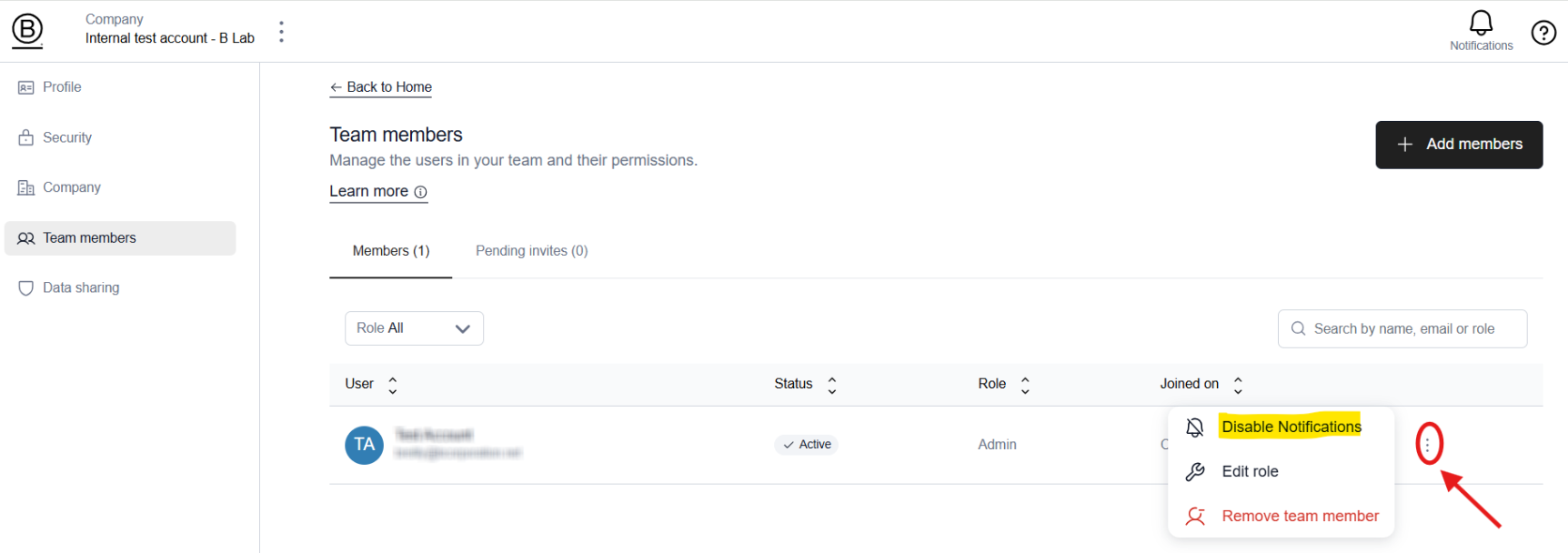
Click enable or disable notifications for the user
How do I change or reset my password?
Your B Impact Assessment password provides access to the assessment platform, which is used for B Corp certification and recertification.
You can change your password for security reasons or reset it if you forget it. There are two ways for you to change or reset your password. 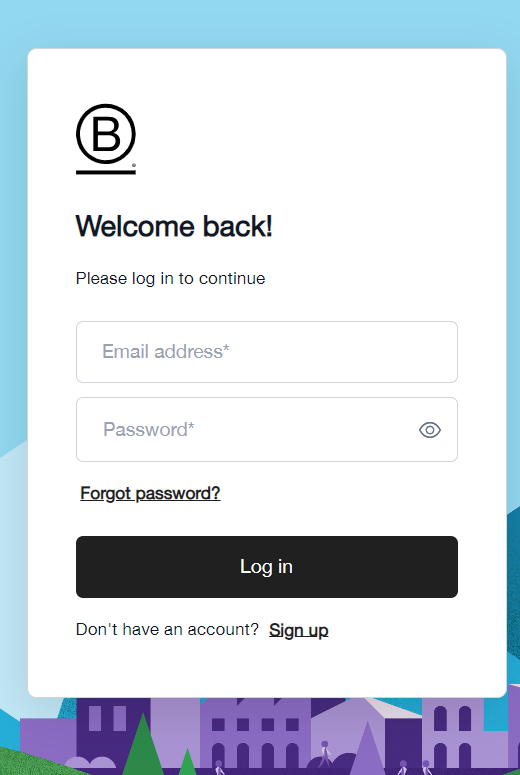
Option 1 - If you forgot your password, reset it from the login page
- Step 1: From the login page, select “Forgot Password?” at the bottom of the screen.
- Step 2: Enter your email address and select “Submit.”
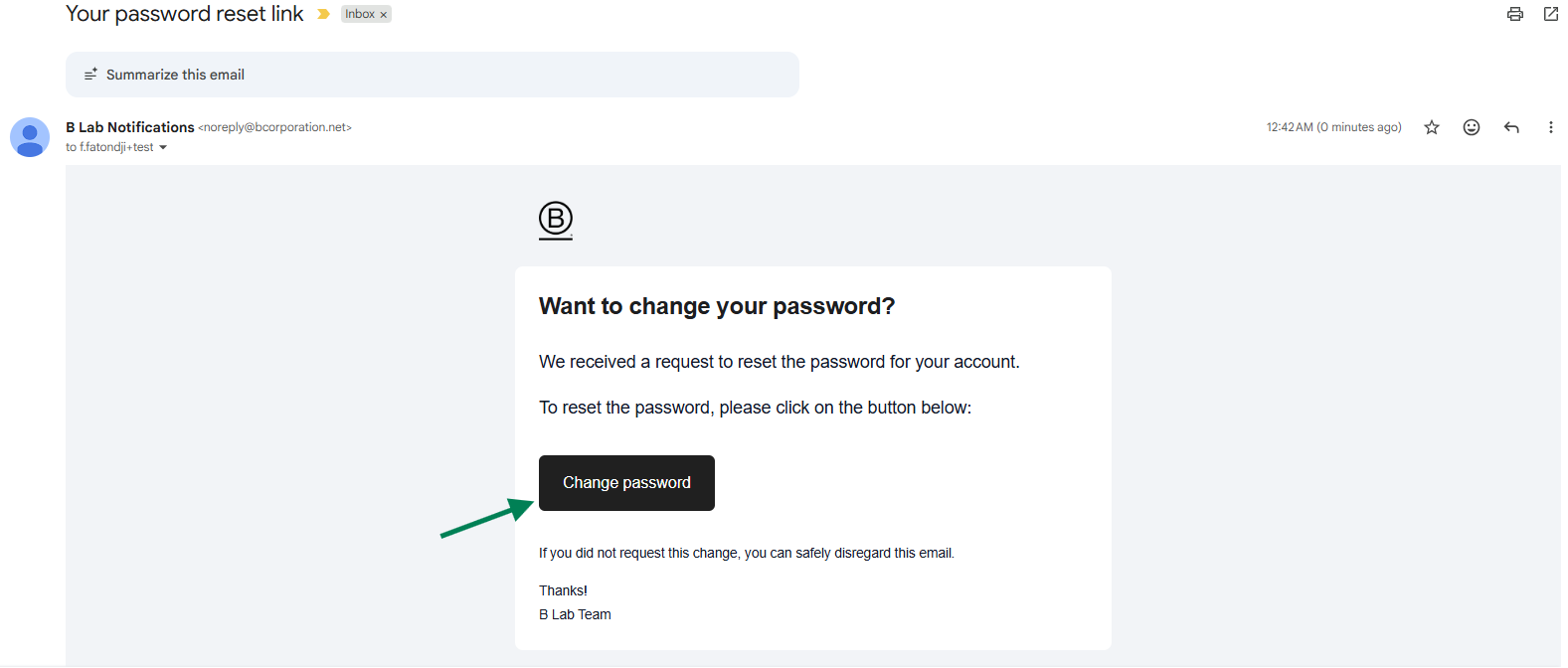
- Step 3: You will receive an email from B Lab Notifications <noreply@bcorporation.net> in your inbox with instructions to reset your password.
Option 2 - If you want to change your password for security reasons, you can do so fromthe Profile page in the platform.
- Step 1: Login into your account.
- Step 2: Click on the User icon in the upper right-hand corner.
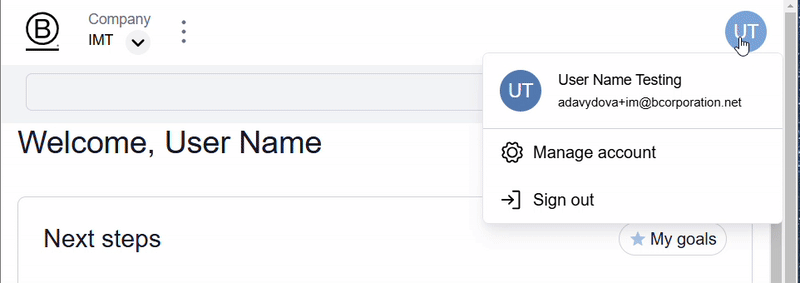
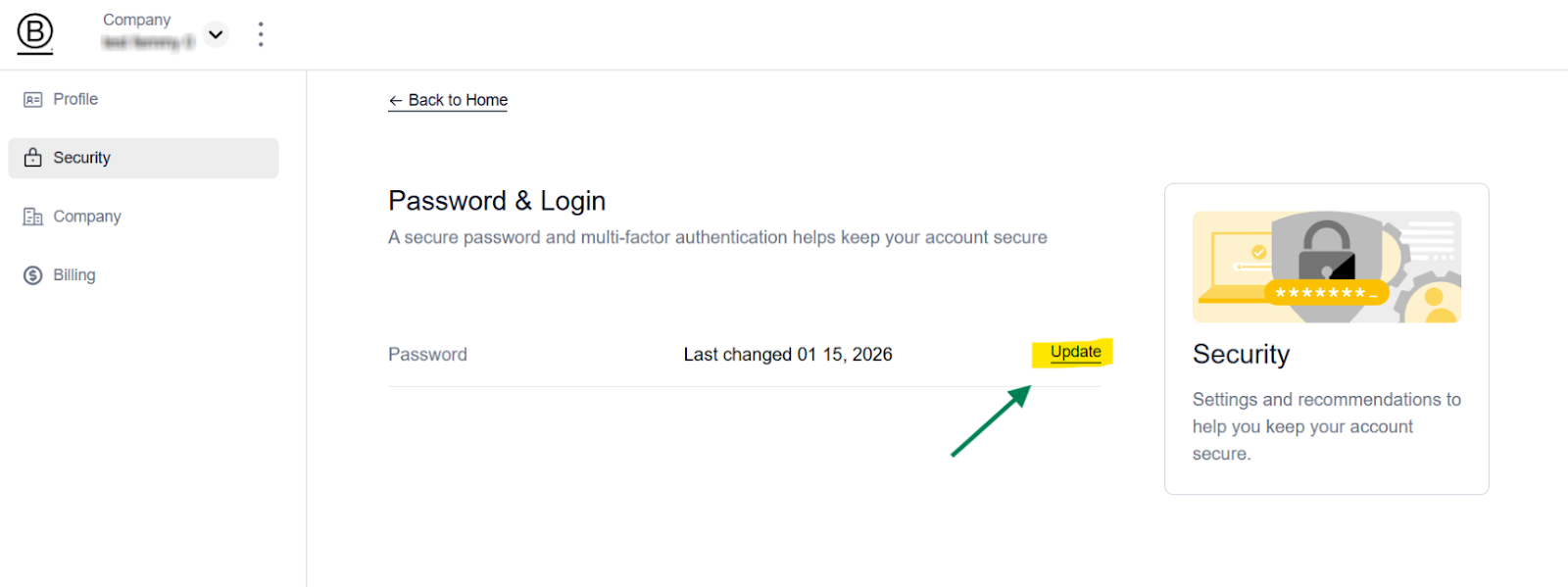
Step 3: Select the Profile tab on the left-hand menu. In the Security section on this page, you will find the option to Update your password.
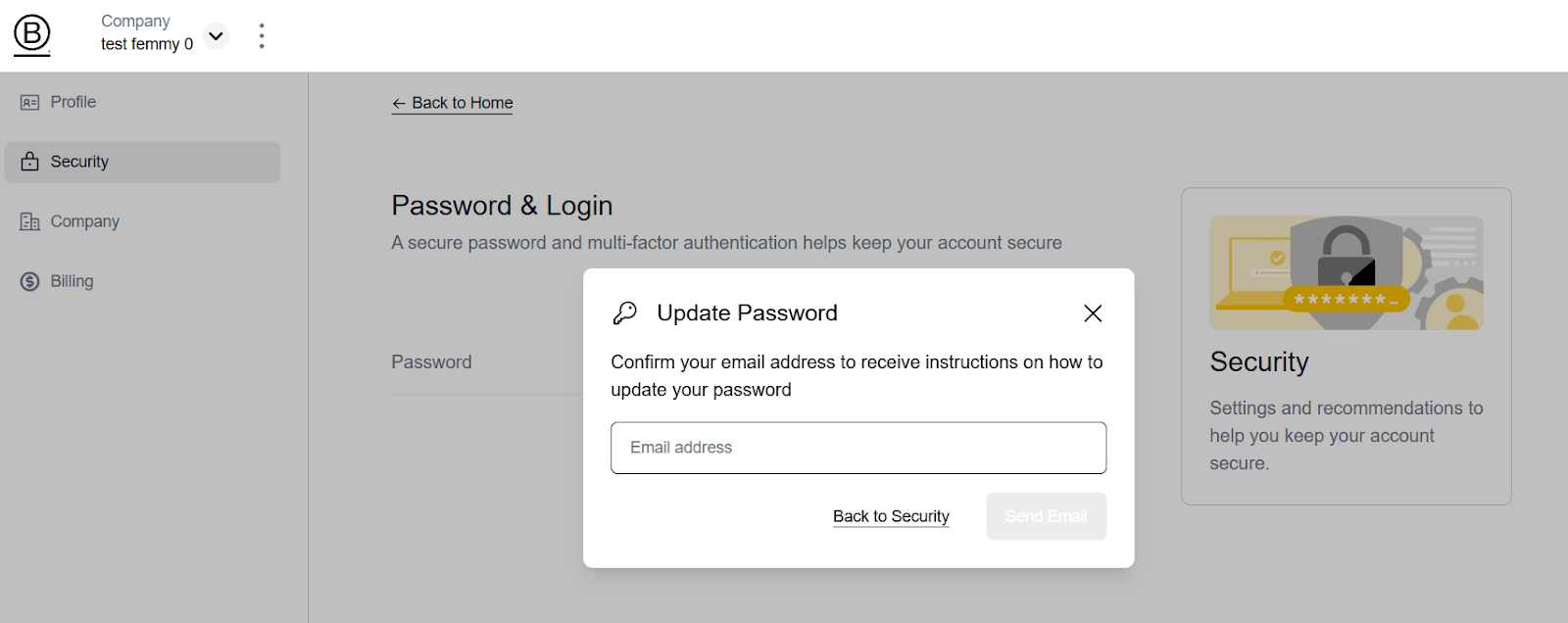
Step 4: You must provide your current email address to receive a link allowing you to change your password.
Step 5: Please check your email inbox for the auto-notification with the subject title "Your password reset link". And then click on the link Change Password.
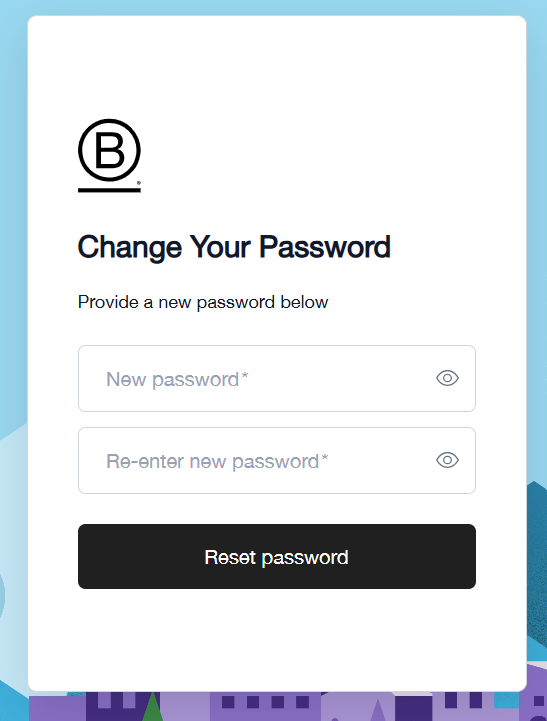
Step 6: Finally, you will have the option to update your new password.
Once you save the password, the security page will show the date of the last change.
Tip: Consider the following characteristics when you update your password:
- at least 8 characters
- at least 3 of the following:
- Lower case letters (a-z)
- Upper case letters (A-Z)
- Numbers (ie. 0-9)
- Special Characters (!@#$%^&*)
NB: If you are still unable to log in despite this guidance, please submit a support request here.
How do I change my language preferences?
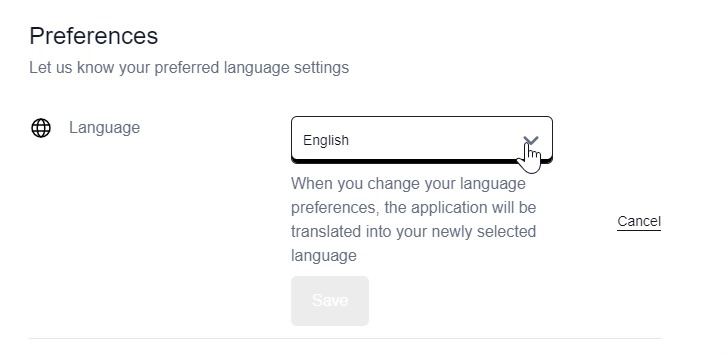
All users are able to modify their language preference for B Impact through the avatar icon of their profile on the top right of the page when logging in.
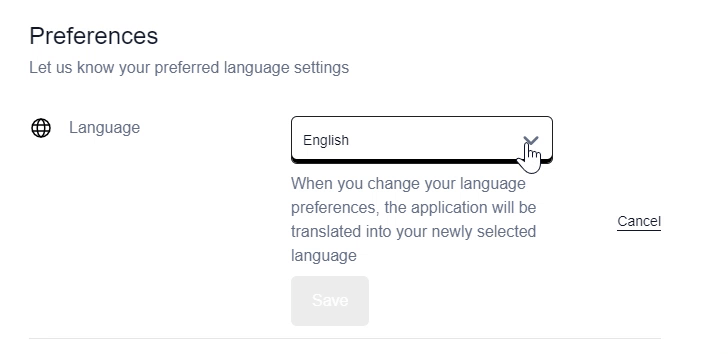
Once you are in the Profile section, there will be a section called Preferences where you can indicate your preferred language settings. Select “edit” on the right side of the language choice and choose from a drop down menu of options. At this time, the options are English, Spanish, French, Italian and Portuguese. Once a choice is made, select the “save” button. The interface should update with the selected language.
How to change my email address?
You can update the email address associated with your user account if your company has changed email domains or if you prefer to use a different email. Or if you would like to add or remove users to your B Impact account, please refer to the “Add or Remove Team Members” article .
Follow these steps to update your own email address.
Step 1: Login into your account.
Step 2: Click on the User icon in the upper right-hand corner and select “Manage account” on the left-hand menu
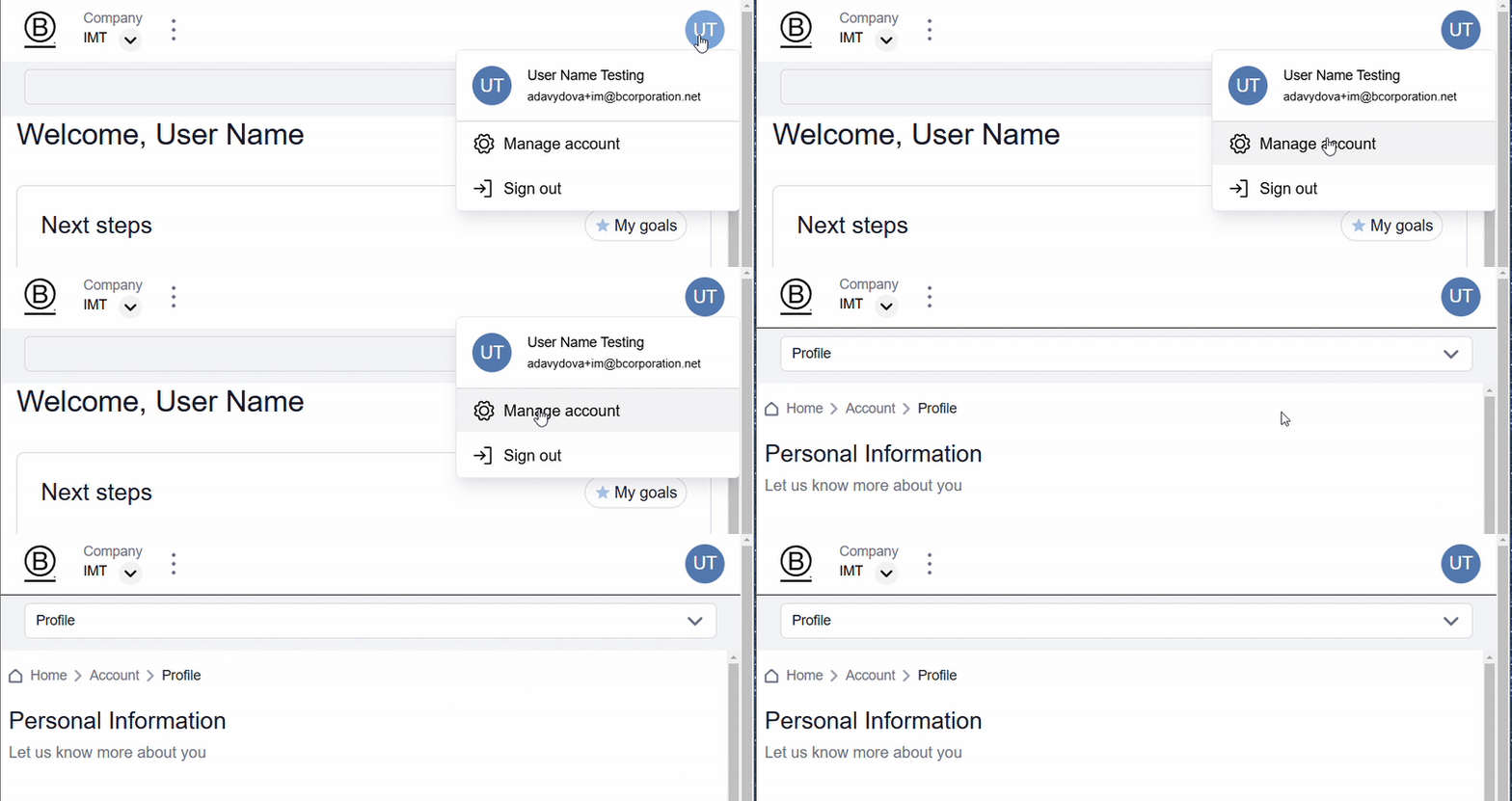
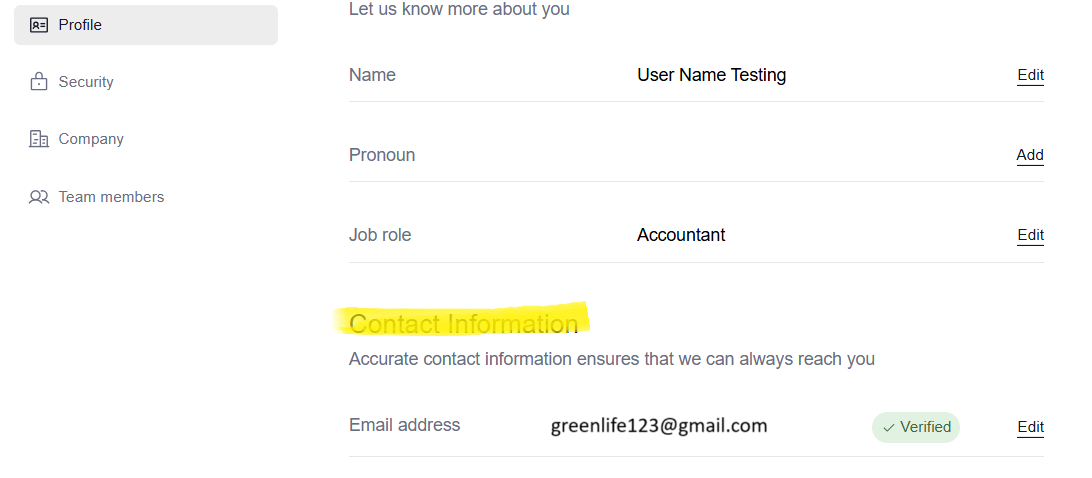
Step 3: The Contact Information section on this page will have a field where you can add your new email address. Select “edit” on the right corner.
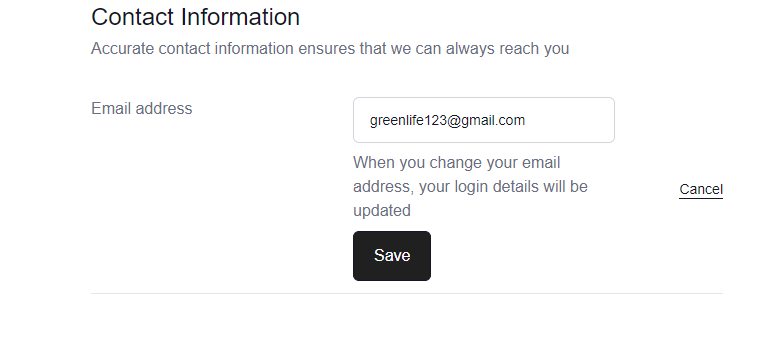
Step 4: Once you have added the new email address, select “Save.” The new email will be updated on the Contact information section.
Step 5: Once you save the new email address, there will be a red pill "Not verified" next to the “Edit” button of the email address.
An email from B Impact will be sent to the new email address. Click on the "Verify email address" button on the email. After this step, you will see a green pill "Verified" in the email address section of the Profile tab.
How to verify your email address
After you register for your account on the B Impact platform with your email and password, you can select the email to verify your account.
Once an email is selected, you will receive an email verification link in your preferred inbox, with a subject line similar to “Please complete your B Impact registration.”
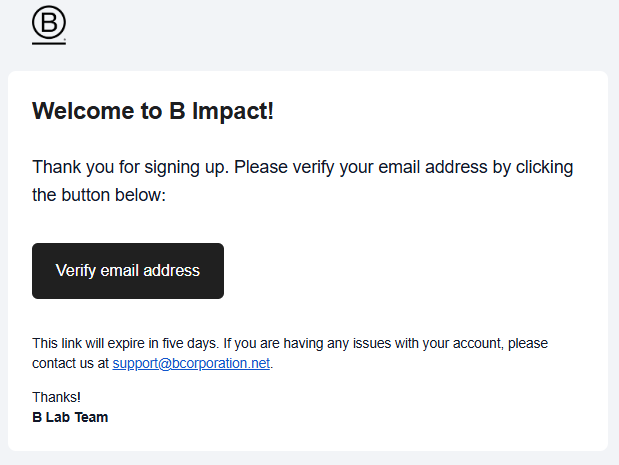
Click on the option “Verify email address,” and it will redirect you to the B Impact portal.
The Profile section within the Manage account settings includes a Contact Information section that will indicate if an email is verified or not.
Once you have verified your email, if you are facing issues logging in, please consult the related article:
Sign in to your existing B Impact Assessment
Supported internet browsers for the B Impact Assessment portal
The B Impact Assessment is a digital tool that can help measure, manage, and improve positive impact performance for environment, communities, customers, suppliers, employees, and shareholders. To ensure that critical features are working as designed for this tool, we invite all users to access it only via any of the following supported browsers.
Those browsers include the most recent version, and the last version of:
- Google Chrome™
- Apple Safari®
- Mozilla Firefox®
- Microsoft Edge™
- Opera™
Clients not using the latest versions of these browsers may experience performance and rendering issues.
Pop-up and cookie-blocking software should be disabled. If fire wall software is used, please allow an exception for this portal.
Other Browser Requirements:
- JavaScript is enabled
- Cookies are enabled
- Local storage is enabled
Please note: Internet Explorer 11 will no longer be supported after June 1st, 2020. In 2015, Microsoft released Edge as a replacement for Internet Explorer and since then, has not released any major updates to Internet Explorer. As a result, Internet Explorer is not able to accommodate complex web applications such as the B Impact Assessment and SDG Action Manager.
if you are experiencing some issues to access our BIA tool with any of these supported browsers, please log a ticket/request under our Knowledge Base portal.
[https://kb.bimpactassessment.net/support/tickets/new]