- Introduction
- Step 1: Before you start
- Step 2: Access your self-assessment in B Impact
- Step 3: Review each sub-requirement and assess your current practices
- Step 4: Assign responsibilities and track your progress
- Step 5: Use the available guidance and resources
- Step 6: Prepare and upload supporting evidence
- Step 7: Review and complete your self-assessment
- Step 8: Submit your self-assessment for audit
- Step 9: After submission
Introduction
The self-assessment in B Impact is your central workspace throughout the certification journey. It allows you to understand which B Lab Standards requirements apply to your company, evaluate your current level of compliance, identify any gaps, and prepare the evidence that will be reviewed during your audit.
To prepare your self-assessment for audit, you are expected to:
Review all applicable sub-requirements.
Implement the necessary actions to meet each applicable sub-requirement.
Provide clear, comprehensive answers and supporting evidence for each applicable sub-requirement.
Your completed self-assessment, together with your certification scope, will serve as the starting point for your third-party audit. This article explains how to complete the self-assessment in B Impact.
Step 1: Before you start
Before you begin working on your self-assessment, make sure you have completed both of the following sections in B Impact.
Certification Setup
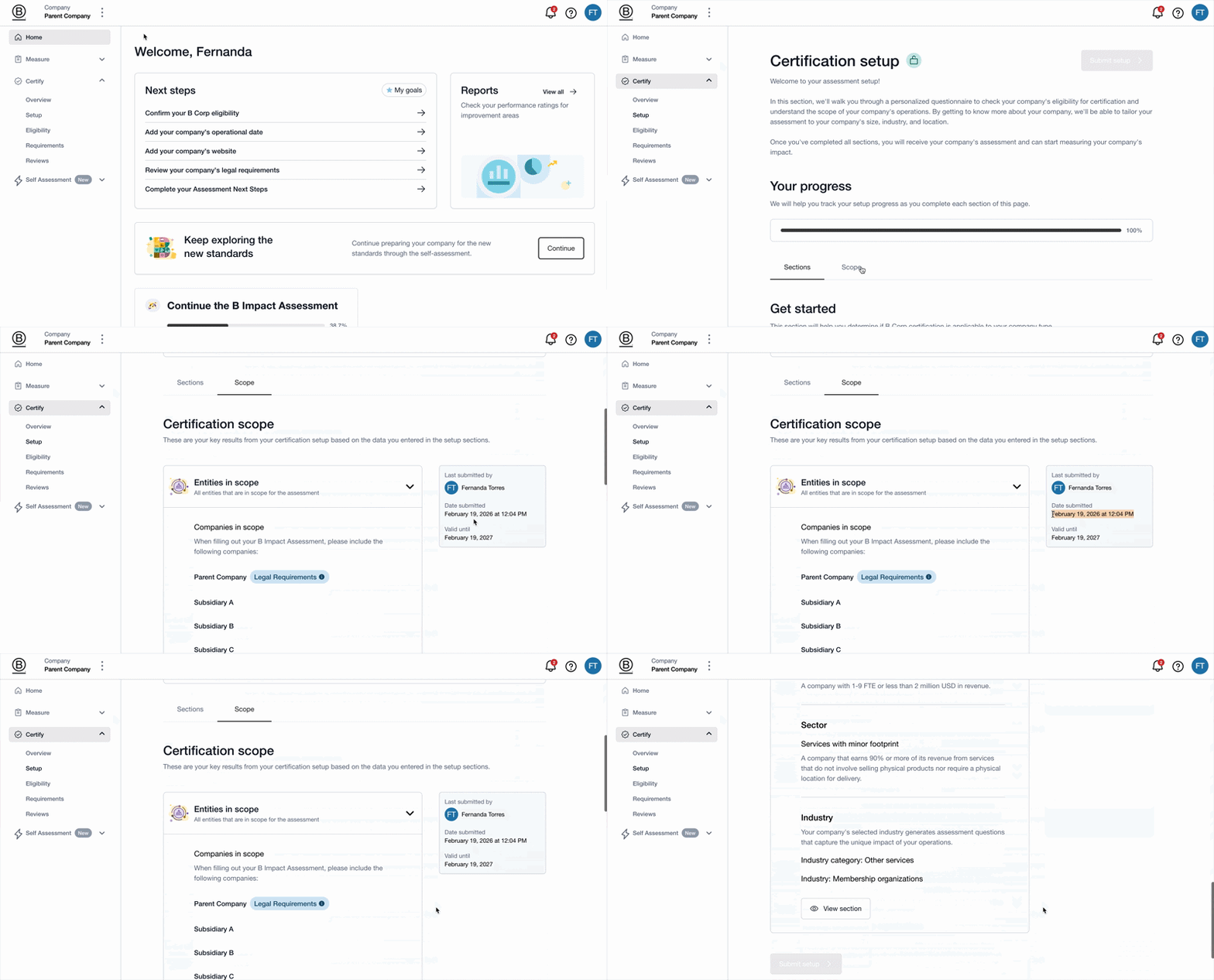
Complete all four sections of Certification Setup to confirm your company's initial eligibility, certification scope and track.
If you haven't completed this step, see Step-by-step guide: Completing Certification Setup in B Impact.
Foundation Requirements
Complete the Foundation Requirements, which determine your company's eligibility for B Corp Certification and the additional requirements that apply to it.
If you haven't completed this step, see How to find and work on your Foundation Requirements.
Once you've completed both steps, B Impact generates your customized self-assessment with Impact Topic requirements based on your company's scope, track and risk profile. These requirements reflect your company's specific circumstances and determine which sub-requirements you need to address.
Important: Start working on your self-assessment only after completing both prerequisites. Skipping these steps or completing them only partially may result in an inaccurate set of requirements that cannot be used for auditing purposes.
Step 2: Access your self-assessment in B Impact
To access your self-assessment:
Log in to B Impact and open your company workspace.
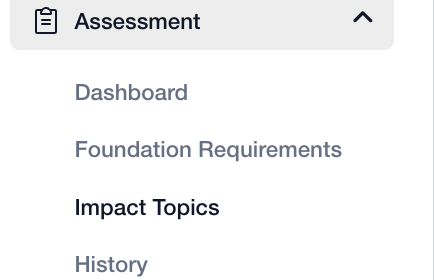
Select Assessment from the left-hand menu.
Select Impact Topics to view your applicable requirements.
Your assessment is organized into seven Impact Topics:
Each Impact Topic contains multiple requirements and sub-requirements. You'll work through the applicable sub-requirements to assess your company's practices, identify gaps and document your progress.
Step 3: Review each sub-requirement and assess your current practices
Work through your applicable sub-requirements, reviewing each one carefully to understand what your company needs to demonstrate. Read this article to understand how the sub-requirements are structured and how to interpret them.
For each sub-requirement:
Review the requirement and compliance criteria. Read the requirement carefully to understand what is expected and how compliance is assessed. Pay attention to any conditions that determine whether the sub-requirement applies to your company and any options that allow you to choose between different actions. See How to manage sub-requirements with conditions or options for further guidance.
Assess your company's current practices. Evaluate your existing policies, processes, governance documents and business practices against the compliance criteria. Determine whether your company already meets the requirement or whether further action is needed.
Identify any gaps. If your company doesn't yet meet the requirement, identify what needs to change. This could involve developing or updating a policy, introducing a new process, improving data collection, revising governance documents or establishing a training programme.
Develop an implementation plan. Determine the actions needed to address each gap, along with the people responsible and the expected completion dates.
Step 4: Assign responsibilities and track your progress
B Impact includes project management and collaboration features that help your team coordinate work and monitor progress across the self-assessment.
For each sub-requirement, you can:
Assign a responsible team member to oversee its completion.
Set a target completion date to keep work on track.
Add comments to coordinate internally, ask questions and document decisions.
Update its status* to reflect progress.
*You can use the status field to monitor your company's readiness to submit for audit.
These statuses are primarily intended for internal project management. They are not reviewed by B Lab or assurance providers before the audit phase begins.
As you work through the assessment, use the dashboard, accessible from the left-hand menu under Assessment, to monitor your overall progress. It provides a centralized overview of completion across your requirements, helping you identify outstanding work and potential bottlenecks.
For more information, see How to use the status field for sub-requirements and How to use the self-assessment dashboard.
Step 5: Use the available guidance and resources
Each sub-requirement in B Impact includes additional resources to help you interpret the standards and understand how to meet the compliance criteria.
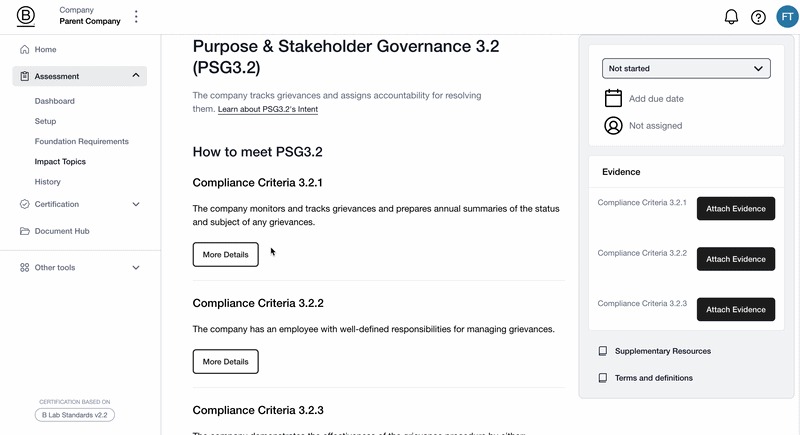
Explore the following sections within each sub-requirement:
Supplementary Resources: Guidance, recommendations, implementation tools and links to resources that can help you understand and address the requirement.
Terms & Definitions: Explanations of key concepts and terminology used in the B Lab Standards to help you interpret the requirements consistently.
Use these resources as you work through your assessment, particularly when you need clarification on a requirement or guidance on the actions needed to meet it. The Knowledge Hub also has guidance on the different Impact Topics.
Step 6: Prepare and upload supporting evidence
Evidence is central to the audit process. For each applicable sub-requirement, you must provide documentation that demonstrates how your company meets the compliance criteria.
As you work through each requirement, identify and upload the relevant evidence rather than waiting until you've completed the entire assessment.
When preparing your documentation, make sure it meets the following criteria:
Clear and relevant: Provide appropriate documentation, such as policies, procedures, records or reports, that directly demonstrates compliance with the requirement.
Specific and easy to navigate: Indicate where relevant information can be found within each document, using page numbers, section titles or specific excerpts where appropriate.
Current and applicable: Ensure that your evidence reflects your company's current practices and applies to the entity or entities included in your certification scope.
Clearly organized: Use descriptive filenames so your team and auditors can easily identify the contents of each document.
Upload evidence as you complete each requirement, and include a short comment explaining how the documentation supports your response. This will help make your assessment easier to review during the audit.
You can upload and manage your documents directly in B Impact. For further guidance, see How to upload and manage documents in B Impact and How to use the Documentation Hub.
Step 7: Review and complete your self-assessment
Once you've worked through your applicable sub-requirements, review your assessment to make sure it is complete, accurate and supported by appropriate evidence.
Before submitting, confirm that:
You've reviewed all applicable sub-requirements and addressed their compliance criteria.
You've implemented the necessary actions to meet the requirements.
Each applicable sub-requirement has a clear, comprehensive answer and relevant supporting evidence.
Evidence is current, clearly organized and applicable to your certification scope.
Sub-requirements that don't apply to your company, where conditions are involved, include a clear explanation.
All applicable sub-requirements have been marked Done: Evidence ready and any approved variances or applicable options have been recorded correctly.
Review your self-assessment summary and dashboard to identify any outstanding requirements. Make sure the information you've provided accurately reflects your company's practices and that the supporting documentation is ready for review.
Your self-assessment is ready for submission once all applicable sub-requirements have the required documentation uploaded.
Step 8: Submit your self-assessment for audit
When your self-assessment is complete, navigate to Certification > Submission in the left-hand menu of B Impact to finalize your submission.
On the Submission page, you'll be asked to:
Confirm that your company and entity details are accurate.
Confirm that you've completed the Foundation Requirements.
Confirm that you've uploaded evidence for all applicable Impact Topic Requirements.
Review the list of brands included your certification.
Sign the B Lab agreement.
By submitting your self-assessment, you confirm that the information you've provided is accurate to the best of your knowledge and that your company is ready for the third-party audit.
Your submitted self-assessment will serve as a primary input for the audit provider when planning and conducting the audit.
For further guidance, see How to complete the Submission page.
Step 9: After submission
After submitting your self-assessment, you'll have to request an audit. You’ll move to the third-party audit platform, where an independent, B Lab-approved assurance provider will review your evidence, conduct interviews and verify your company's conformity with the B Lab Standards.
Your self-assessment and certification scope will form the basis of this review. Having clear responses, well-organized evidence and an accurate account of your company's practices will help facilitate the audit process.
When to start working in your Self Assessment
You should only start working on the Self Assessment after both of these are complete in B Impact:
Certification Setup: You have gone through and completed all four sections to confirm your initial eligibility, scope and track. If you have not yet completed this step, see the article Step‑by‑step guide: Completing certification setup in B Impact.
Foundation Requirements: You have answered the Foundation Requirements that determine whether you are eligible for B Corp Certification and what additional requirements apply. If you have not yet completed this step, see the article How to find and work on your Foundation Requirements.
Completing these steps ensures that you see the correct sub‑requirements based on your company’s scope. Skipping them, or only partially completing them, may generate an inaccurate version of the self‑assessment that cannot be used for auditing purposes.
Once you have finished these steps, B Impact generates a tailored set of sub‑requirements based on your scope, track and risk profile.
How to document sub‑requirements in B Impact
B Impact offers built-in tools to support internal project management and collaboration, allowing you to track your progress toward meeting each sub-requirement through its various features.
How to access sub-requirements in B Impact
Features and helpful resources
Within each sub-requirement, you’ll find features and supplementary resources to help you understand and implement the requirement. These may include guidance, recommendations, implementation tools, and links to additional resources. You’ll also see terms and definitions that clarify how key concepts are defined and applied within the standards.
Within each sub-requirement, you’ll find features and supplementary resources to help you understand and implement the requirement. These may include guidance, recommendations, implementation tools, and links to additional resources. You’ll also see terms and definitions that clarify how key concepts are defined and applied within the standards.
Was this article helpful?
That’s Great!
Thank you for your feedback
Sorry! We couldn't be helpful
Thank you for your feedback
Feedback sent
We appreciate your effort and will try to fix the article