How to use the status field for sub-requirements

Modified on Thu, 11 Jun at 12:14 PM

All requirements visible on your self assessment dashboard will be able to have individual tracking. 


Status selections are not reviewed by B Lab but may be a useful project management tool to track your company’s readiness to submit for audit. You can review the overview of the statuses available for your management for each sub-requirement and see what is appropriate based on how the sub-requirement applies. 


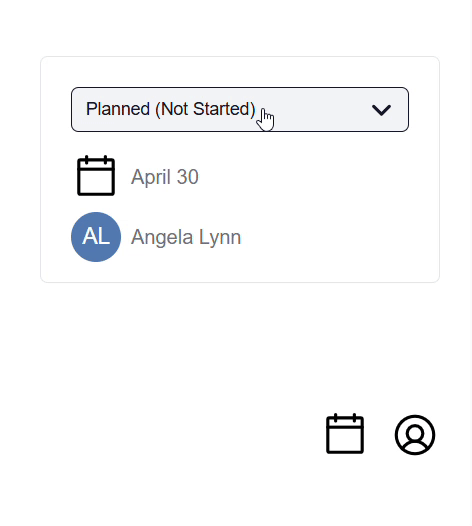
Status 

When to use it

Not started

Default status when you have not reviewed the requirement.

In Progress

Someone is actively working on this requirement (e.g. collecting data, drafting or updating a policy, clarifying scope).

Keep this until both the answer and evidence are nearly final.

Done: Evidence ready

  1. You have uploaded appropriate evidence, and written a short, clear comment explaining how the evidence supports the requirement. For guidance on uploading documents, see the articles How to Upload Documents in the Self-Assessment and How to use the Documentation Hub.

  2. For sub-requirements with conditions that do not apply to your company. For these, clearly state why the sub-requirement does not apply.


This status indicates that the requirement is audit‑ready. 

Not Applicable

Only for sub-requirements with an options menu. For these requirements, the company can choose the actions to implement from the options menu, while respecting the imposed number, specified in the compliance criteria of each relevant requirement.

Variance Approved

Only when a variance has been approved for a specific sub-requirement. A variance is a formally approved, time-bound exception to a B Lab Standard sub-requirement. 


Variances are granted only in exceptional circumstances, when compliance with the requirement is impossible due to objective limitations such as legal, technical, or security reasons.


To learn more, see the article What is a variance and how to request one.


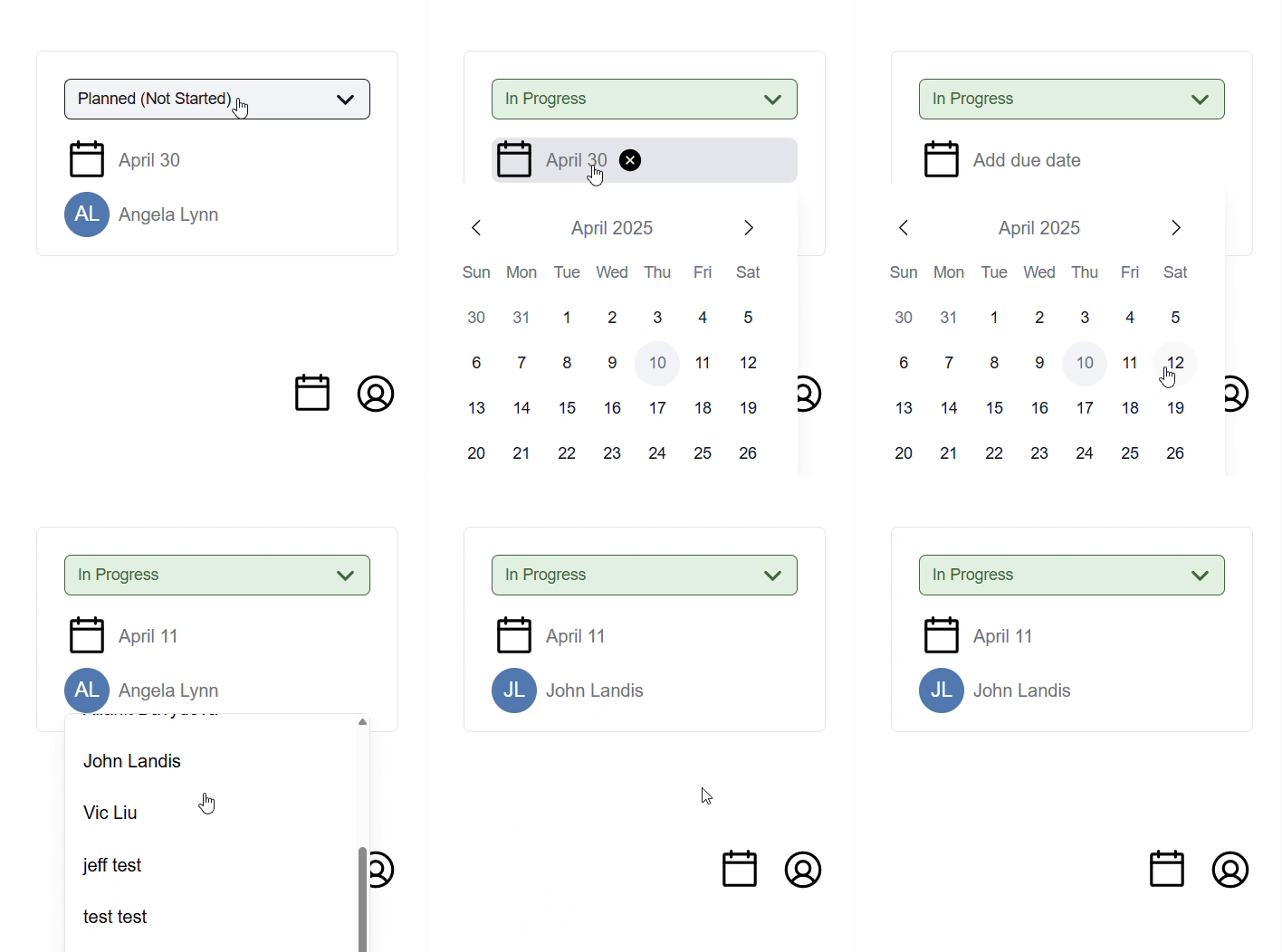
The individual requirement will have features that will help companies do the following:

  • Choose an Assignee of the requirement which will be a Team Member who is part of the company’s profile. This will help individual team members keep track of the requirements they can support best. 

  • Determine a due date which can be for a variety of milestones, some can be related to documentation providing or compiling of records and so on.

  • Select a status which can show to all or other team members which requirements need particular attention. 


The compliance criteria captures the specific data and records that will provide verification for the completion of the requirement. You can select “view action items” to add specific due dates and assignees as well as uploading evidence directly. 
This is also a key place to engage with your team by notifying them in the comments.
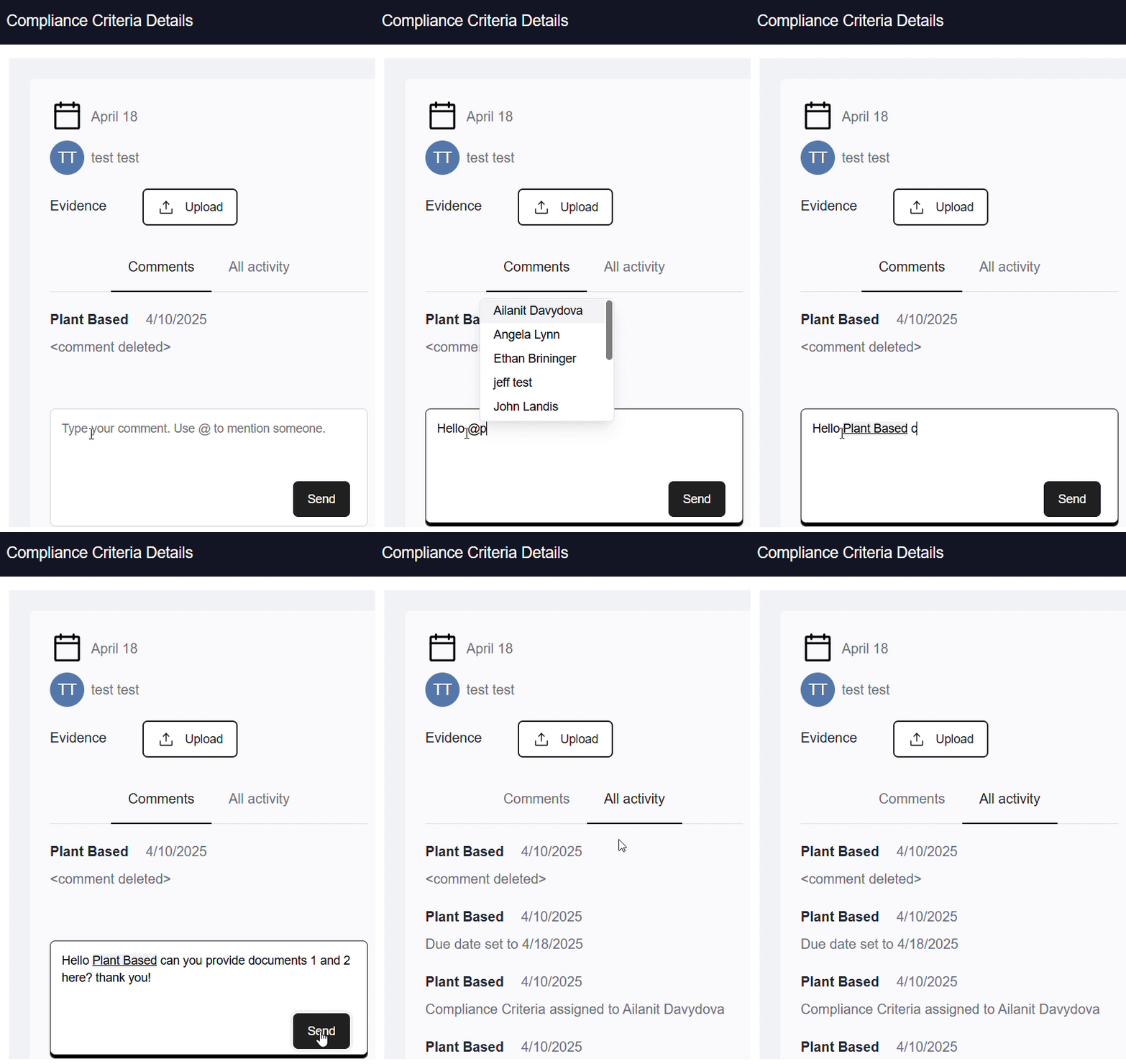

The compliance criteria card is also where you can provide documentation. 

Was this article helpful?

That’s Great!

Thank you for your feedback

Sorry! We couldn't be helpful

Thank you for your feedback

Let us know how can we improve this article!

Select at least one of the reasons
CAPTCHA verification is required.

Feedback sent

We appreciate your effort and will try to fix the article