Once a Scope is determined and confirmed for your company, your Company details page will be incorporated into the Company & entity detail page which requires additional attention.
You can see if a scope is confirmed for your company if you have completed all necessary steps of the Setup page.
The scope is a key aspect of your certification as it determines what entities and locations are part of the assessment considerations and responses.
Please make sure that all sections of your Company & entity details page are updated with the relevant information as this is key to the audit phase.
If your business is listed to have multiple locations for your workforce, you must provide a completed Site List.
The site list is a table of different locations of all operational facilities among the entities in scope.
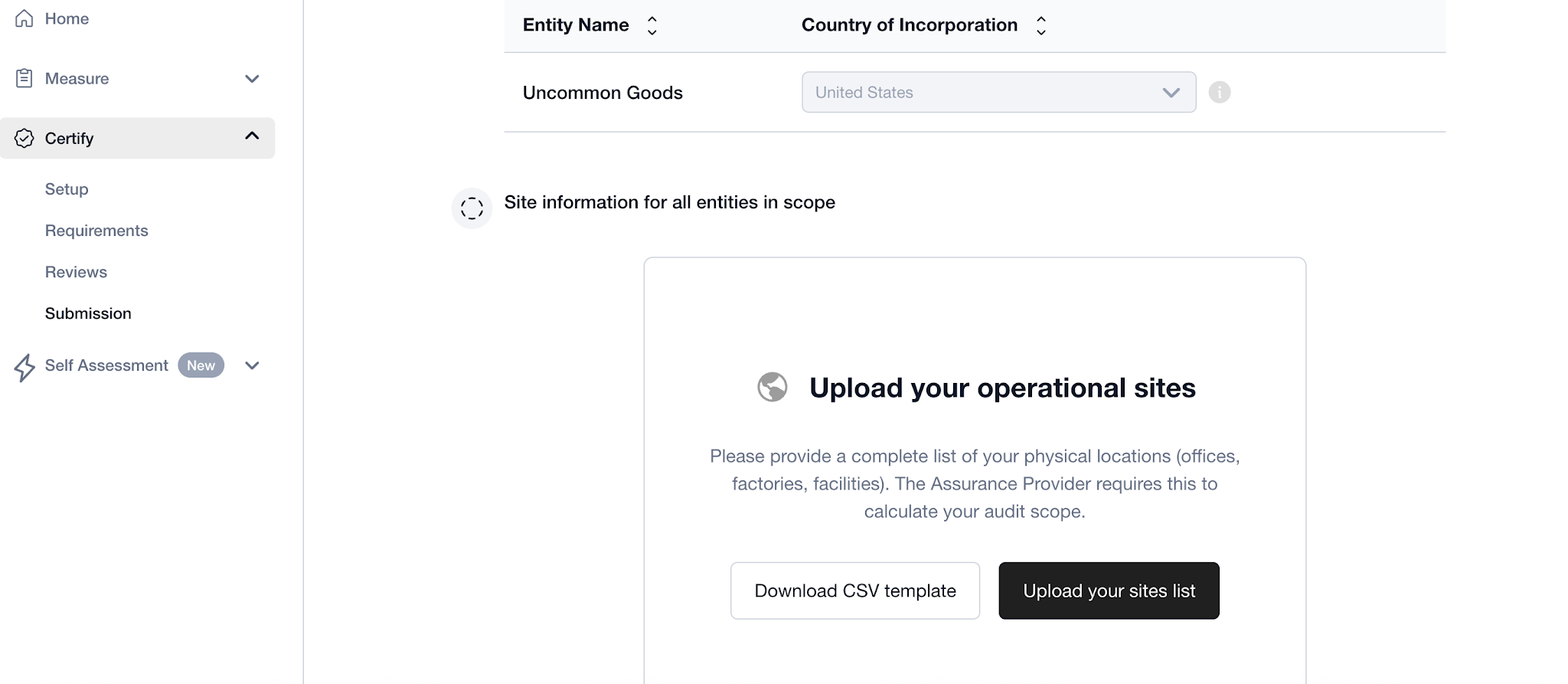
The information required is available by download in the Company & entity details page and is listed below:
It is best to use the downloadable file and provide the table in the provided format in order to provide all necessary information for the auditing process.
How to Complete and Upload the CSV Template:
Follow the steps below to successfully download, fill out, and upload your .csv file.
1. Download the template
Click Download CSV Template.
Save the file to your computer.
Do not change the file format (it must remain .csv).
2. Open the file correctly
You can open the CSV template using:
Microsoft Excel
Google Sheets
Apple Numbers
Any spreadsheet software
Tip: If you use Excel, make sure it does not automatically change the file format when saving.
3. Enter your data
Fill in the required fields following the column headers.
Do not change the column names, order, delete columns you haven't used, or add additional columns; as this will affect the import of the file.
Avoid:
Extra spaces before/after text
Special characters (unless allowed)
Blank rows in the middle of the file
4. Save the file as CSV. Do not rename the file, as this will affect the import of the file
This is the most important step.
In Excel:
File → Save As → File Format → CSV (Comma delimited) (.csv)In Google Sheets:
File → Download → Comma Separated Values (.csv)
Important:
Keep the file in .csv format (not .xlsx).
If prompted about multiple sheets or formatting, click Yes / Continue.
Only the active sheet will be saved in CSV format.
5. Upload the file to the platform
Return to the Company & entity details page.
Click “Upload your sites list”
Select your completed file.
Was this article helpful?
That’s Great!
Thank you for your feedback
Sorry! We couldn't be helpful
Thank you for your feedback
Feedback sent
We appreciate your effort and will try to fix the article