The Scope summarizes the finalized aspects of certification as they pertain to your entities and assessment details. In some cases, this can be generated automatically once you complete relevant prompts in the setup pages. In other cases, a B Lab Specialist will confirm key aspects before a scope memo is generated.
To find the scope memo, navigate to the Setup page under Certify.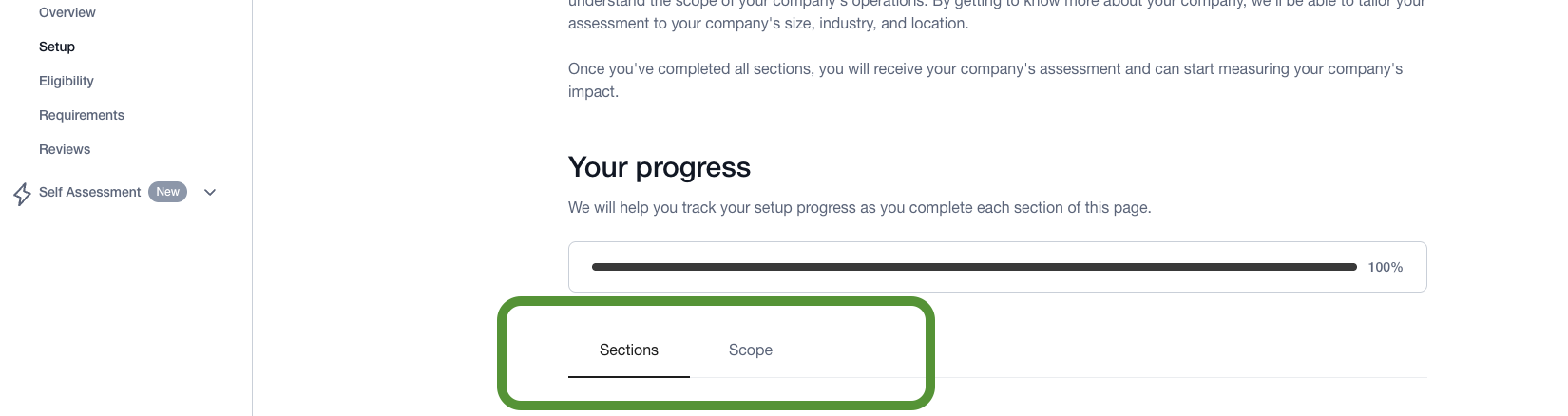
A populated scope memo will appear on the right tab of the Sections in Setup.
In it you will find information such as:
When the setup information was completed and submitted in full.
The length of time the scope memo is valid for use in Requirement responses.
This means that the information is valid to be used for assessment responses until the date listed. Past that date requires updated information in setup prompts.
Additionally, you will have “Entities in scope” which include the entities that are required to be considered in assessment responses for operational considerations (such as entity A’s workforce and entity B’s workforce). In this section, you will find entities where the legal requirement applies, which requires a change and is explained more on the Legal Requirement Tool.
If your company has more than one entity or location of operation, please navigate to the Company detail to provide a list of sites for all entities in scope.
You will also see a section “Assessment scope” which outlines the value of your assessment size with the details related to size, sector and industry. The company’s size is determined based on the Fiscal year end date, Revenue, FTE Equivalency and size category. This determines the Requirements visible in the Self Assessment.
Was this article helpful?
That’s Great!
Thank you for your feedback
Sorry! We couldn't be helpful
Thank you for your feedback
Feedback sent
We appreciate your effort and will try to fix the article