- Make a Compliance Request in the B Impact audit section
- Watch this video demonstration of how to request an audit
After you have submitted your self-assessment for audit, you will need to request an audit in the B Impact audit section.
Make a Compliance Request in the B Impact audit section
Once you click “Continue to Audit” in B Impact, all evidence provided thus far in B Impact will be transferred to the B Impact Audit section, where a compliance request is auto-generated. You’ll need to input some key information in the compliance request to request an audit of your assessment.
To request an audit:
1. The first page on the B Impact audit section is the Compliance Dashboard page. From here, proceed to the “Compliance Request” section using the left-hand navigation.
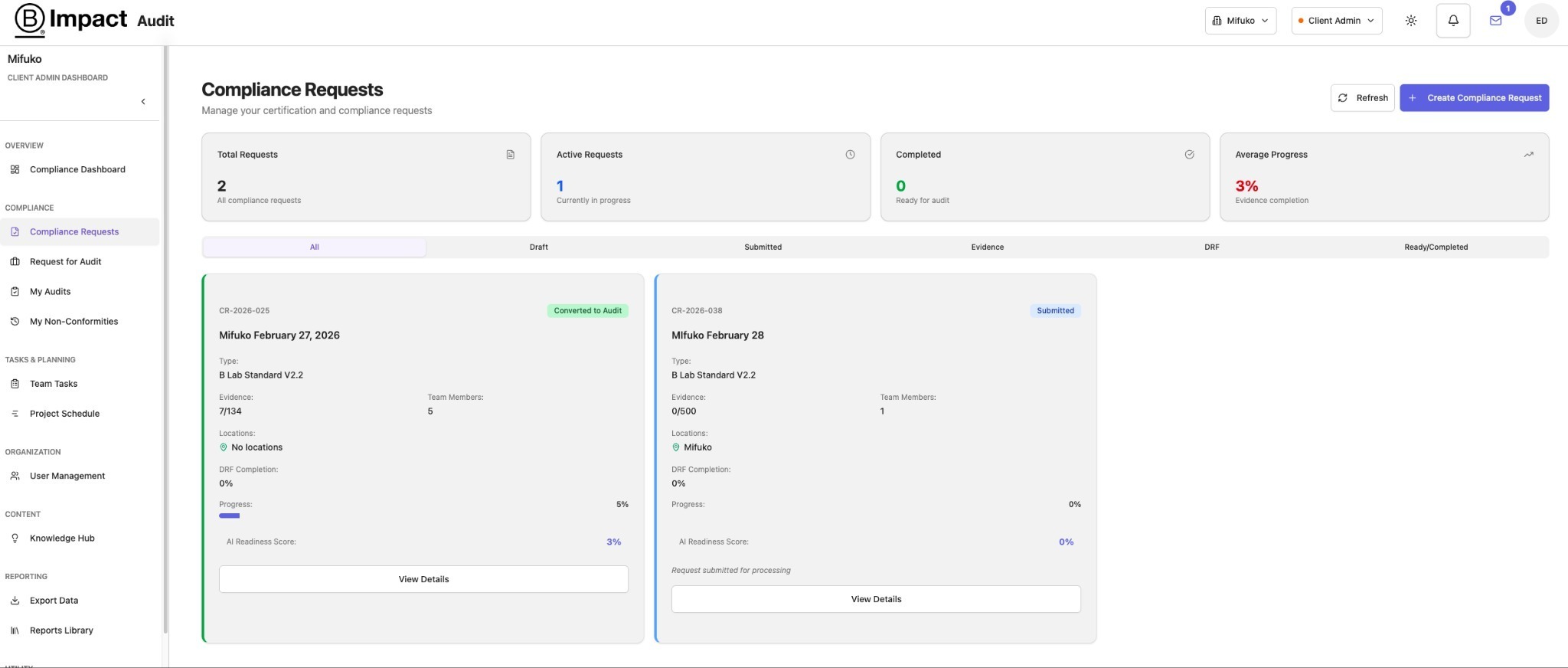
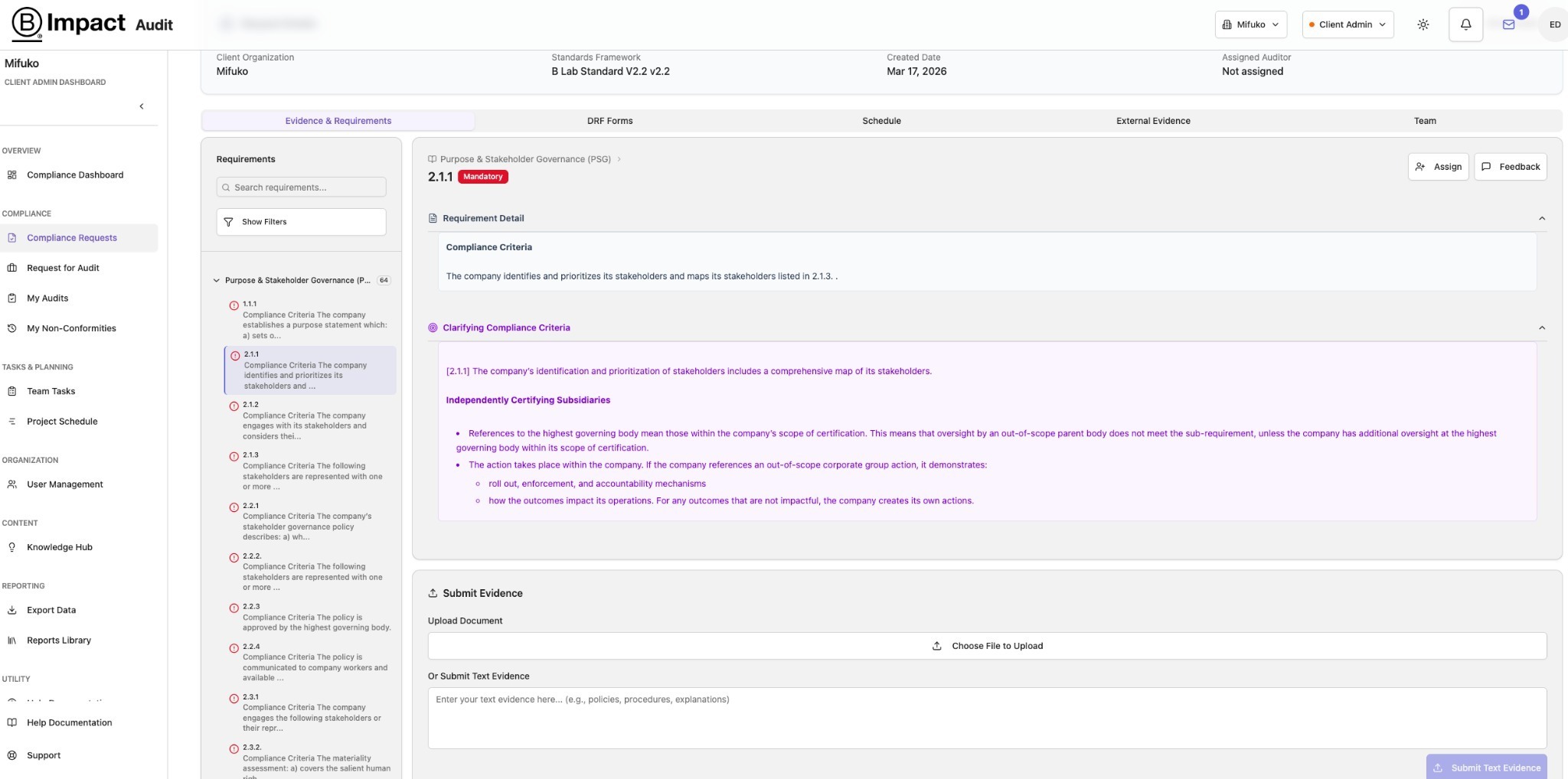
2.Click on "View Details" on the compliance request to get to the screen below. You can review the sub-requirements, evidence provided and more.
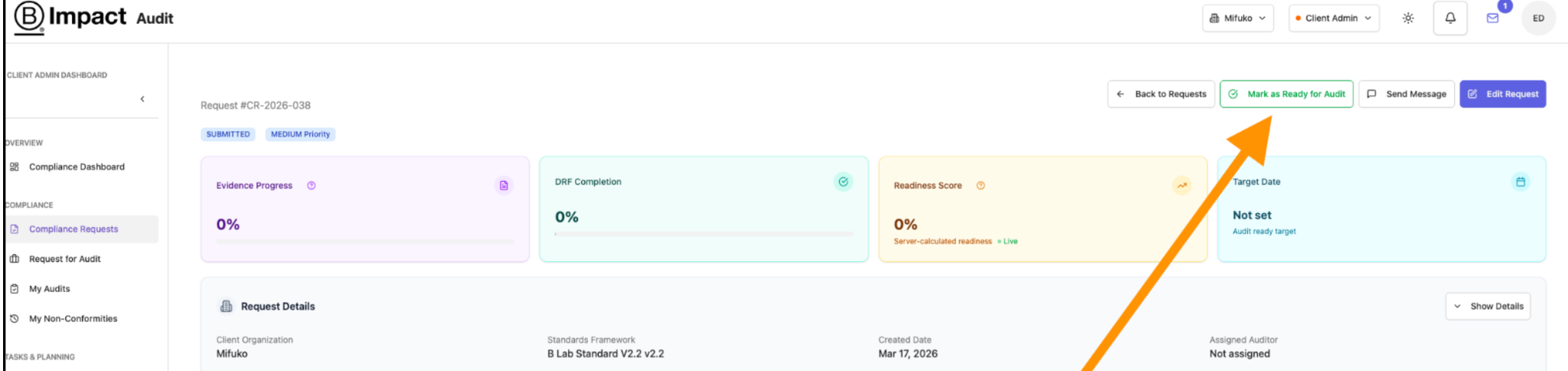
3. In order to notify the Assurance Provider about readiness to be audited, click on: "View details" on the Compliance Request on the left sided menu. This will open a dashboard view where you can select "Mark as Ready for Audit”.
4.The button turns green and changes to "Request Audit".
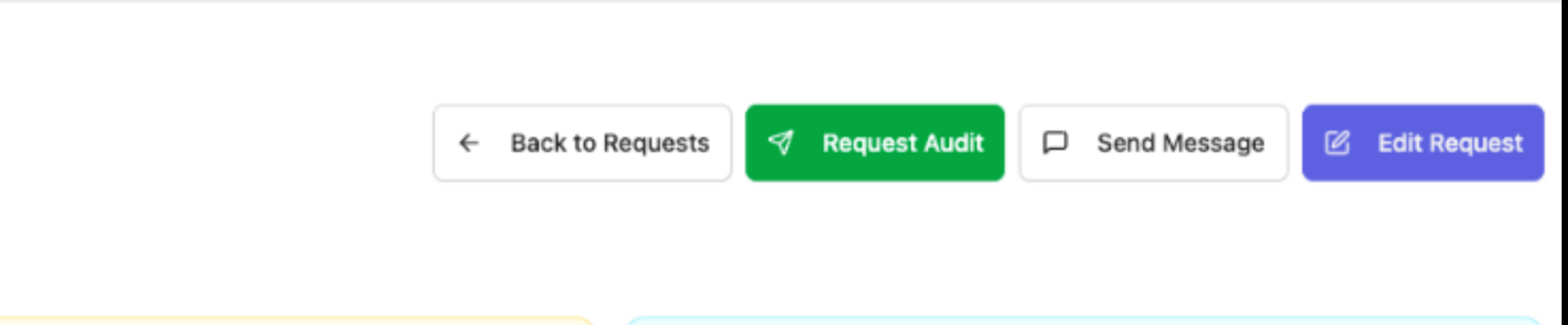
Once you click "Request Audit", you will be prompted to enter the following information in order to complete the progress bar:
Basic information – Most of the information on this page will be pre-filled based on the information provided earlier in B Impact. However, you should still review this page to ensure everything is filled correctly and enter any missing data.
Audit scope
Timeline
Certification Body selection (automated) – this indicates the assurance provider – either To-Cert or SCS – which is automatically assigned based on the company size.
Once you click on "Confirm and Submit Request,” your company’s assessment and information is now in the assurance provider's queue to start the audit.
Watch this video demonstration of how to request an audit
Was this article helpful?
That’s Great!
Thank you for your feedback
Sorry! We couldn't be helpful
Thank you for your feedback
Feedback sent
We appreciate your effort and will try to fix the article