This article explains how to view nonconformities identified during a B Corp audit, and submit a corrective action plan and supporting evidence to resolve them in the B Impact audit section.
For guidance on how to develop a corrective action plan, see How to build a corrective action plan for B Corp audits.
Post-audit findings
After the audit closing meeting, your Assurance Provider (AP) prepares an audit report, which records evidence of conformity and nonconformity against applicable B Lab Standards. The report lists all major and minor nonconformities identified during the audit.
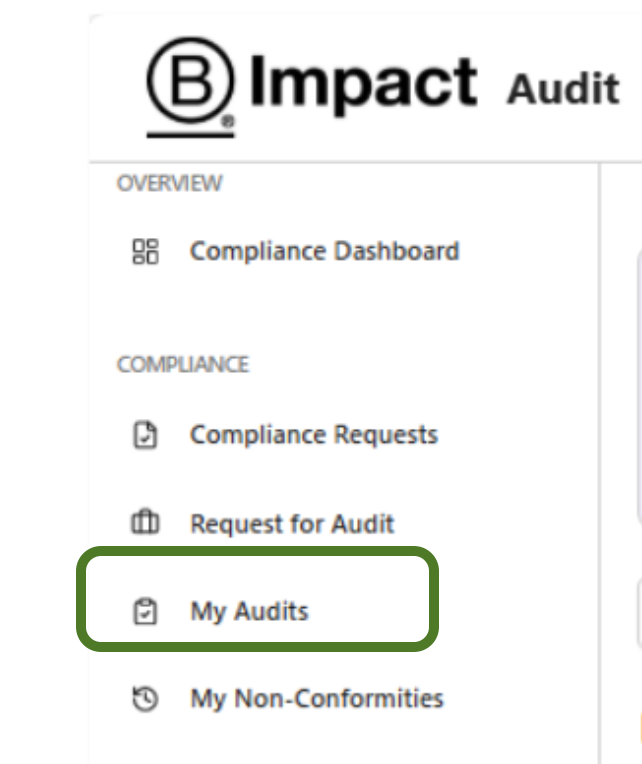
Once the two reports are published, the audit status changes to Client Review and your nonconformities become visible in the platform.
Timeline for resolving nonconformities
For initial audits
Major nonconformities must be resolved within 6 months of the audit report. If not, the assurance provider issues a negative certification decision.
For minor nonconformities, a corrective action plan must be submitted within 2 months from the audit report. However, evidence of implementation can be submitted by the next audit to give companies time to implement corrective actions and still certify.
For surveillance, Year 3, recertification or special audits
Major nonconformities must be resolved within 3 months of the audit report. If not, the assurance provider may suspend certification for up to six months. For recertification, a company can recertify with open major nonconformities as long as they have submitted a corrective action plan.
For minor nonconformities, the same timeline for initial audits applies.
Unresolved minor nonconformities from a previous audit are reclassified as major.
Viewing your nonconformities
To review your nonconformities:
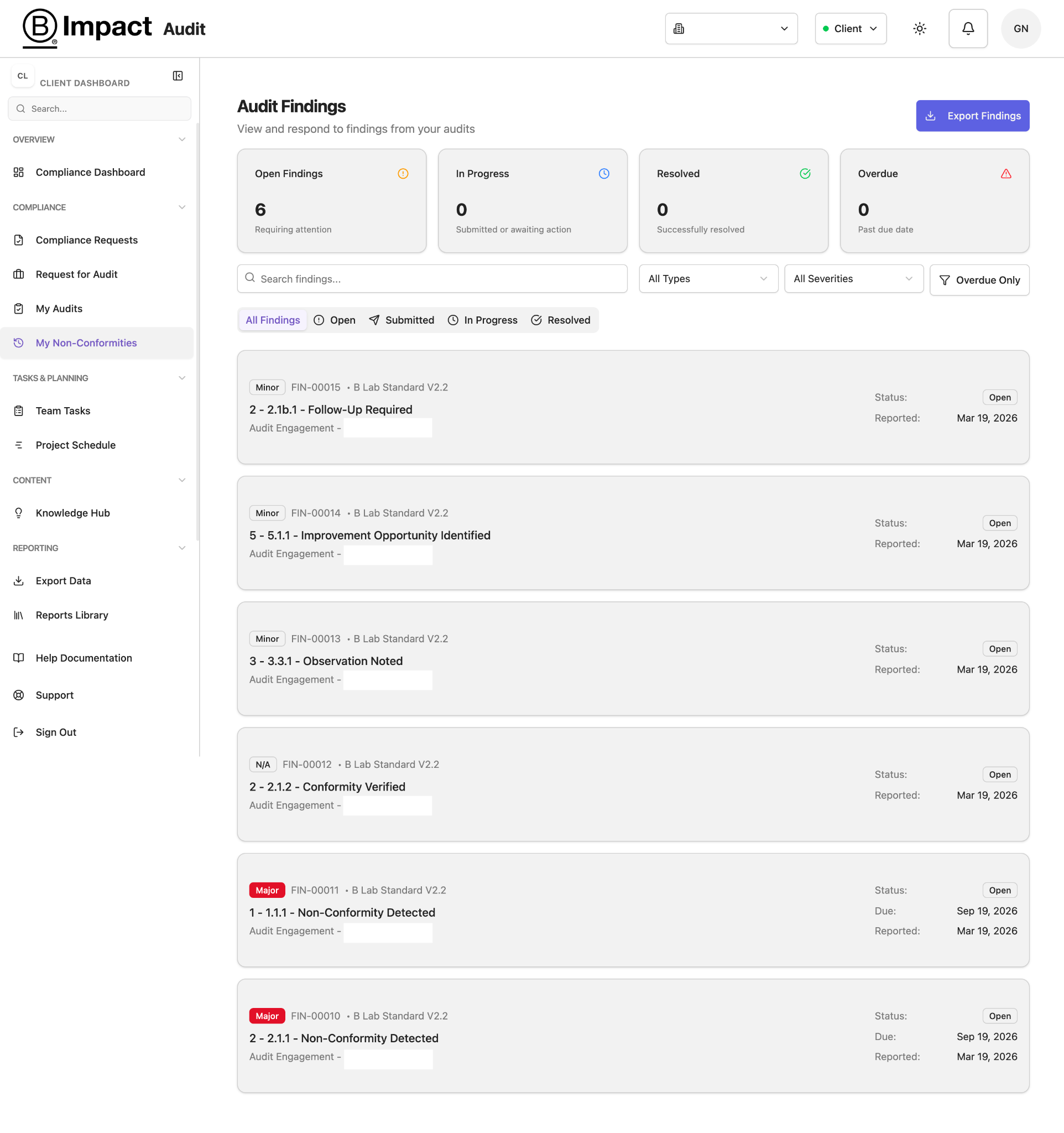
Navigate to the B Impact audit section
Select “My Non-Conformities” on the left-hand menu
You will see all the nonconformities in a list view under “All Findings”
4. Click on a nonconformity to open a card. Each nonconformity card contains:
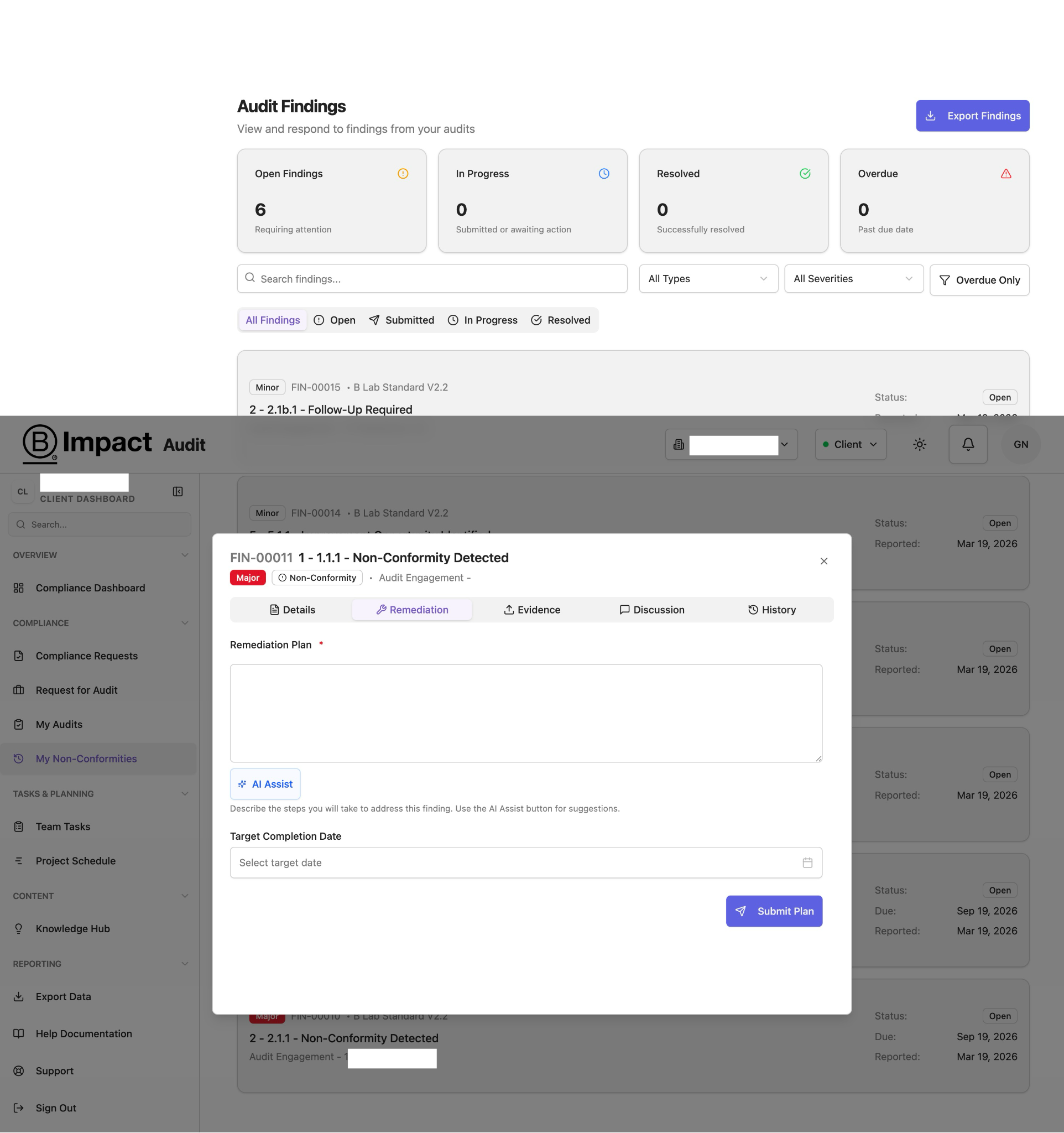
Description of the nonconformity in the “Details” tab
Whether it is a major or minor nonconformity
A Remediation tab for submitting a corrective action plan
A section to upload evidence of implementation of the corrective action plan
A target completion date
Submitting a corrective action plan
For each nonconformity, companies must provide a corrective action plan through the platform.
Companies should enter their response directly into the Remediation Plan field. A separate corrective action plan document is not required – however, you can choose to upload your plan in the Evidence section in addition to completing the Remediation Plan field.
Your corrective action plan entered in the Remediation Plan field should include:
Root Cause Analysis (RCA)
Correction (short-term action)
Corrective Action (long-term solution)
Timeline for implementation
Implementation evidence
For guidance on preparing an effective corrective action plan, see How to build a corrective action plan for B Corp audits.
Uploading implementation evidence
You can upload implementation evidence for each nonconformity in the “Evidence” tab of the nonconformity card.
Examples may include policies, procedures, training records, internal reports or other records demonstrating implementation. Your auditor will review the submitted evidence and may request additional information through the platform.
Communicating with your auditor
Questions, requests for clarification, and requests for additional evidence are managed through the Discussion section within each nonconformity card.
The Discussion feature allows companies and auditors to communicate directly about a specific finding and maintain a record of all correspondence related to that nonconformity.
When a new action is required, a notification appears in the platform notification center. Depending on your Assurance Provider, email notifications may not yet be available, so companies should monitor platform notifications regularly.
What happens next
Once all nonconformities are completed within the stated deadlines, the Assurance Provider reviews the submissions and progresses the audit toward a certification decision.
Was this article helpful?
That’s Great!
Thank you for your feedback
Sorry! We couldn't be helpful
Thank you for your feedback
Feedback sent
We appreciate your effort and will try to fix the article